TABLE OF CONTENTS
1. Overview of the Real-Time Feedback Feature
2. When and Where Feedback Appears
6. Important Notes & Limitations
7. Frequently Asked Questions (FAQ)
Note:
To experience this feature, please ensure your app is updated to the latest version.
You can find the latest version on the App Store or Google Play Store.
1. Overview of the Real-Time Feedback Feature
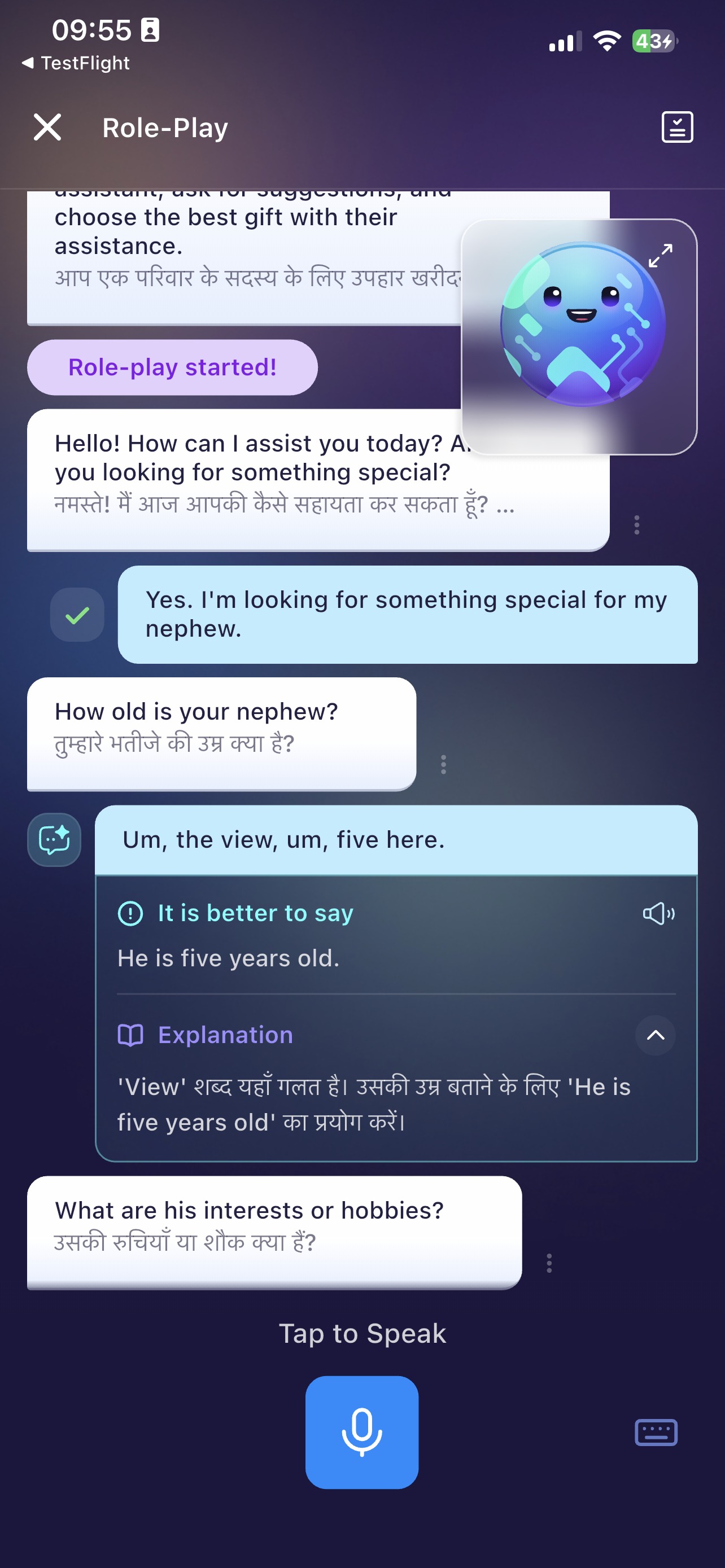
Real-Time Feedback provides instant, AI-generated recommendations after each user response during a Roleplay or Open-Ended Conversation lesson.
It helps users understand:
What they said,
How can they say it better,
With example improvements,
And a translation for clarity.
The feedback is non-intrusive, meaning it only appears when the user chooses to view it.
2. When and Where Feedback Appears
✔ When does feedback appear?
After the user speaks in any Roleplay or Open-Ended Conversation lesson, a small feedback icon/button will appear next to the user’s speech bubble.
✔ What does the icon show?
The icon has two states depending on AI evaluation:
The icon itself does not interrupt the conversation.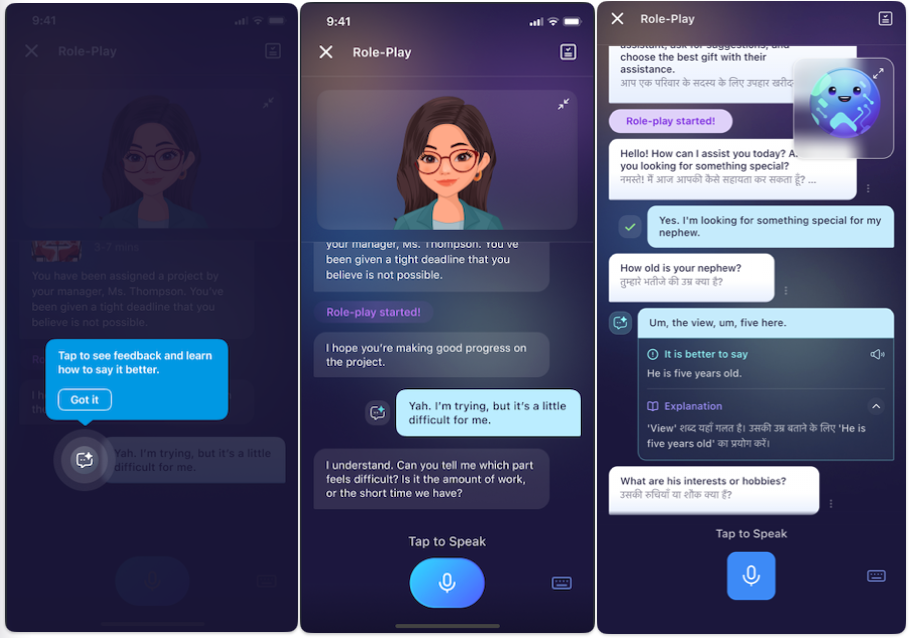
3. How to View Feedback
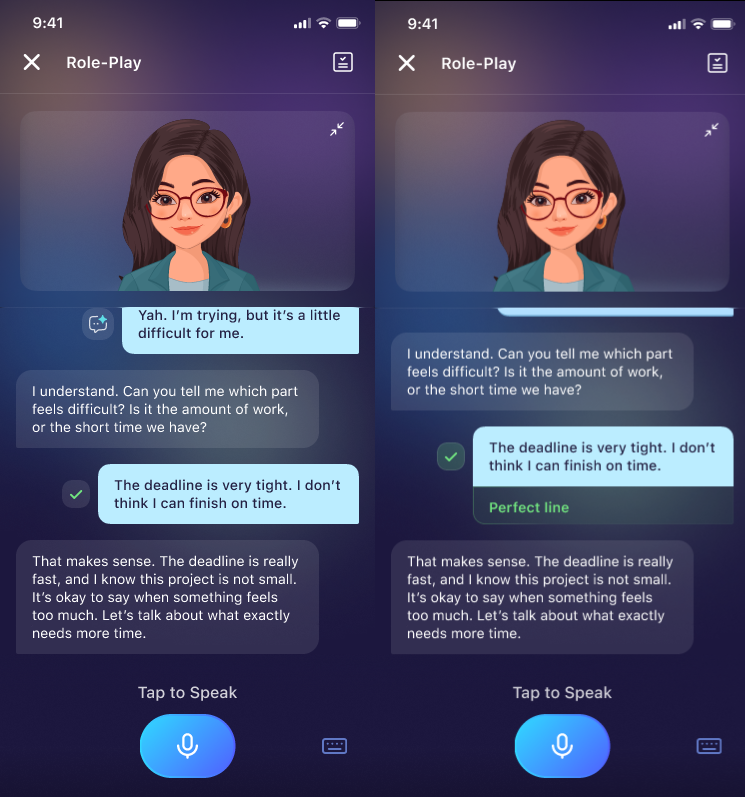
Feedback is shown only when the user taps the icon next to their spoken message.
Steps:
Speak your line as part of the Roleplay/Open Conversation
After your message is processed, a feedback icon appears next to your bubble.
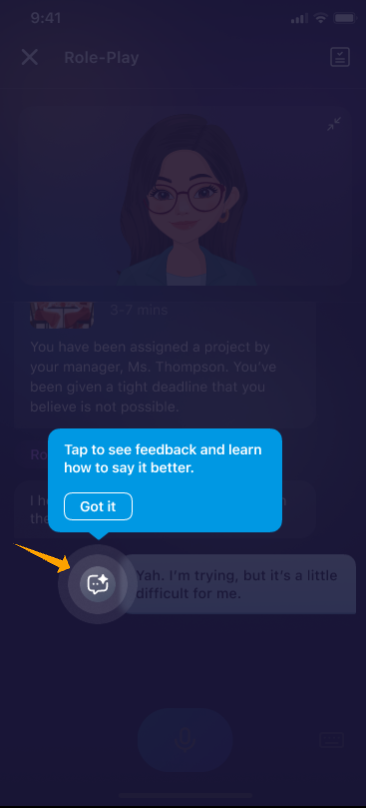
Tap the icon to reveal:
AI recommendation on how to improve the sentence
A clearer or more natural phrasing
Pronunciation or grammar notes (if applicable)
A translation (e.g., to Vietnamese) for better understanding
Tap again to collapse/close the feedback.
This allows users to learn without feeling overwhelmed.
4. What Feedback Includes
Each feedback section contains:
1. Suggested Improvement (AI-Generated)
A better or more natural way to express what the user said.
2. Explanation
Short notes explaining:
Why the suggestion is better
What grammar or vocabulary improvement was applied
Any nuance or tone adjustment
5. Accessing Past Feedback
Users can always revisit feedback during the same conversation.
How it works:
All feedback icons remain visible next to each user's speech bubble.
Users can scroll up anytime to open previous feedback.
Nothing disappears unless the user exits the lesson.
This ensures users can review their mistakes and improvements throughout the session.
6. Important Notes & Limitations
Feedback is only available in Roleplays and Open-Ended Conversation lesson types.
Feedback does not disrupt or pause the conversation flow.
- Users must manually tap to view feedback, this design prevents cognitive overload.
- Feedback quality may vary based on microphone clarity and background noise.
AI suggestions focus on naturalness, fluency, grammar, vocabulary, and tone, not only pronunciation.
7. Frequently Asked Questions (FAQ)
Q1: Why am I not seeing feedback?
A: Feedback icons appear only in supported conversation-based lessons. If you're doing a pronunciation drill or structured exercise, the icon will not appear.
Q2: Will feedback interrupt my roleplay?
A: No. Feedback is non-intrusive and only shows when you tap the icon. You can continue the conversation normally.
Q3: Can I hide feedback if I don’t want to see it?
A: Yes. Simply ignore the icon. Feedback is optional.
Q4: Can I view old feedback later?
A: Yes, you can scroll up anytime within the same conversation to access previous feedback.
Q5: Can I get feedback in another language?
A: Yes. The improved suggestion includes a translation based on your language settings.
Q6: What does “Positive” or “Needs Improvement” mean?
- Positive → Your response is clear and natural; only small or optional refinements needed.
- Needs Improvement → Significant improvement is suggested for clarity, grammar, fluency, or naturalness.
Q7: Does feedback evaluate pronunciation?
A: It focuses mainly on expression, naturalness, and clarity. Some pronunciation hints may appear when relevant.
Was this article helpful?
That’s Great!
Thank you for your feedback
Sorry! We couldn't be helpful
Thank you for your feedback
Feedback sent
We appreciate your effort and will try to fix the article