As an admin of your organization’s dashboard, you’ll need to create teams and invite team leads. This helps streamline the learning experience by allowing better management, support, and tracking of learners. You can create teams through the “Teams” tab on the dashboard.
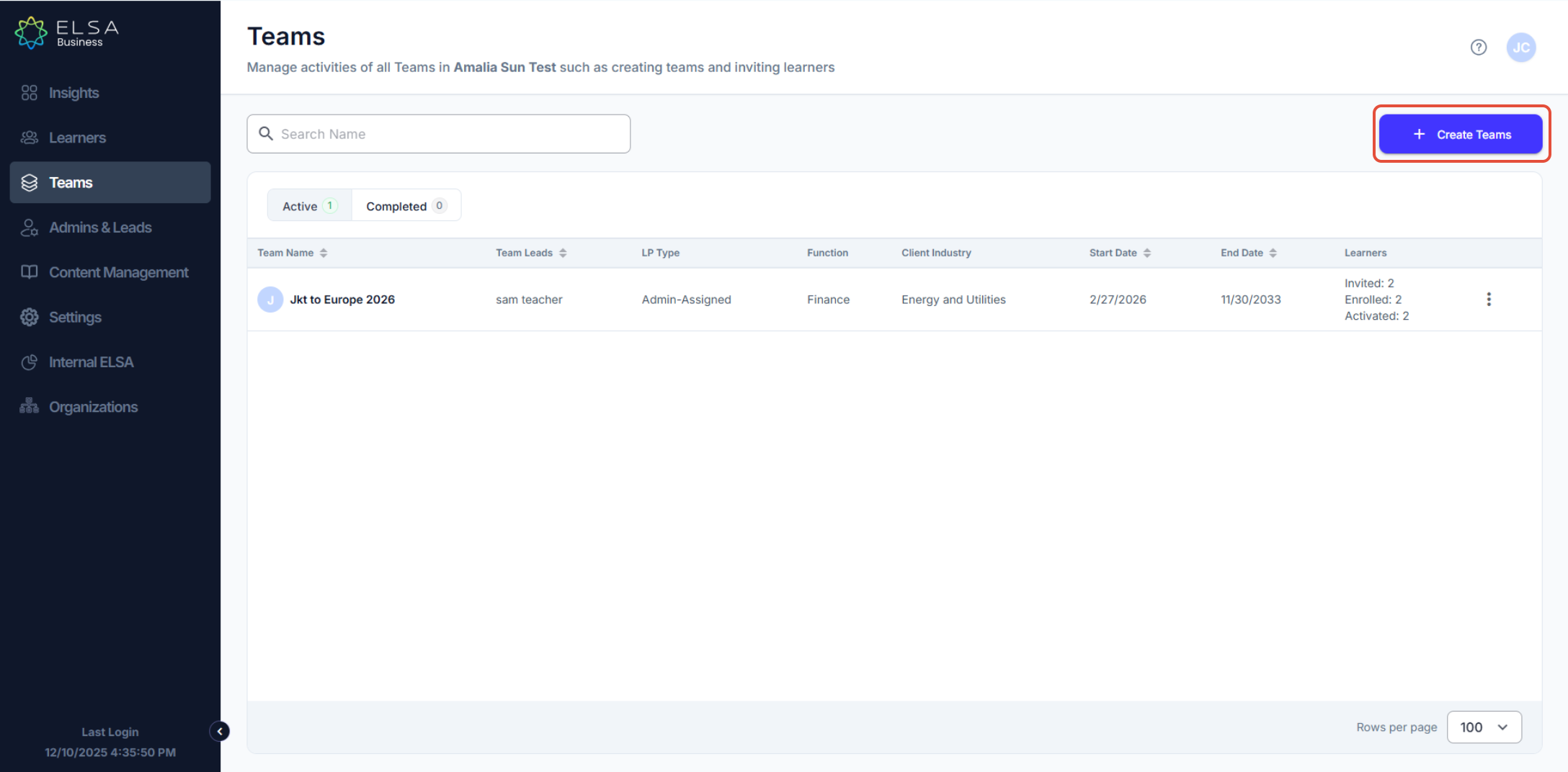
1. Start creating teams by clicking on the “+ Create Teams” button.
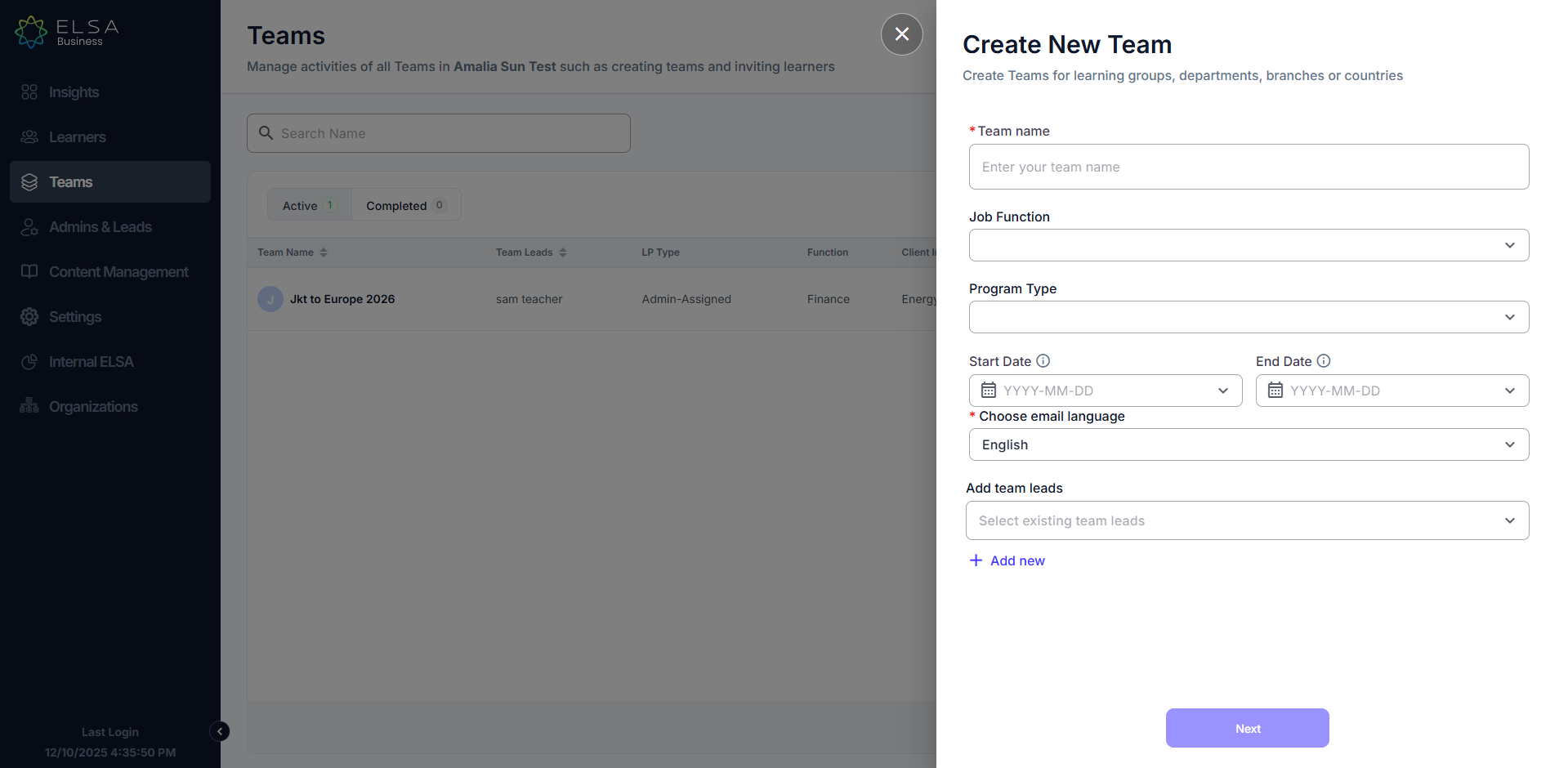
2. After clicking “+ Create Team”, a sidebar will appear. Enter the *team name, job function, program type, start and end dates, *email invitation language, and assign a team lead.
After you complete all sections and click Next.
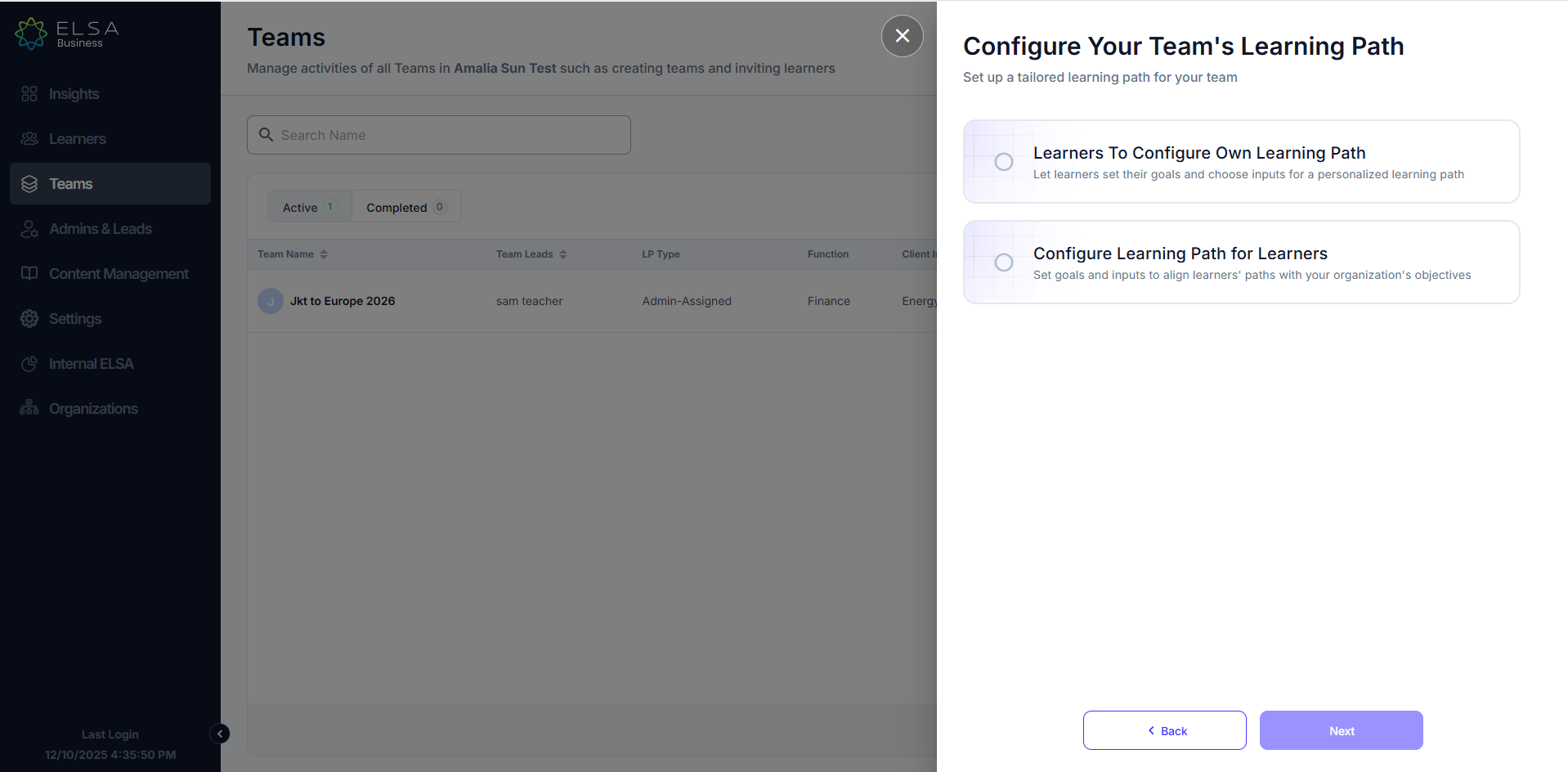
3. You will be shown two options:
Learners can configure their own learning paths, or you can set paths aligned with your organization’s objectives.
4. If you choose to Configure Learning Path for Learners, you will need to confirm the team's function and select the Organization Specific Document (if applicable) as the learning topics will be related to the specific team function and your organization-specific document.
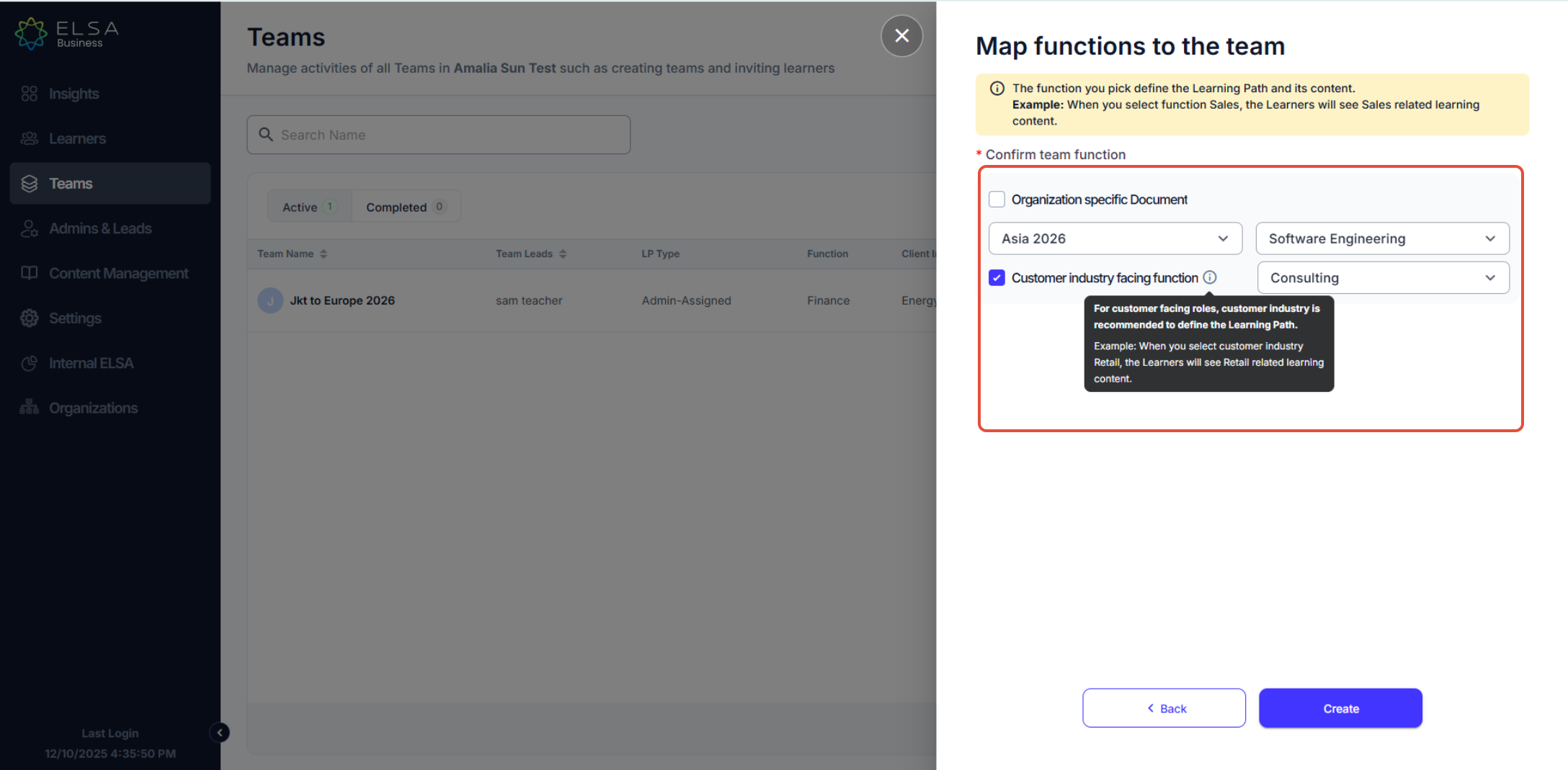
If "Customer Industry Facing Function" is selected, the AI Tutor will assign customer-facing topics.
Once confirmed, click "Create" to add the team to the dashboard.
Was this article helpful?
That’s Great!
Thank you for your feedback
Sorry! We couldn't be helpful
Thank you for your feedback
Feedback sent
We appreciate your effort and will try to fix the article