To create new programs, please follow the simple steps below:
1. Admins / Team Leads can customize ELSA content for their teams by going to Content Management, select Practice Modules, and choose the "My Programs" tab.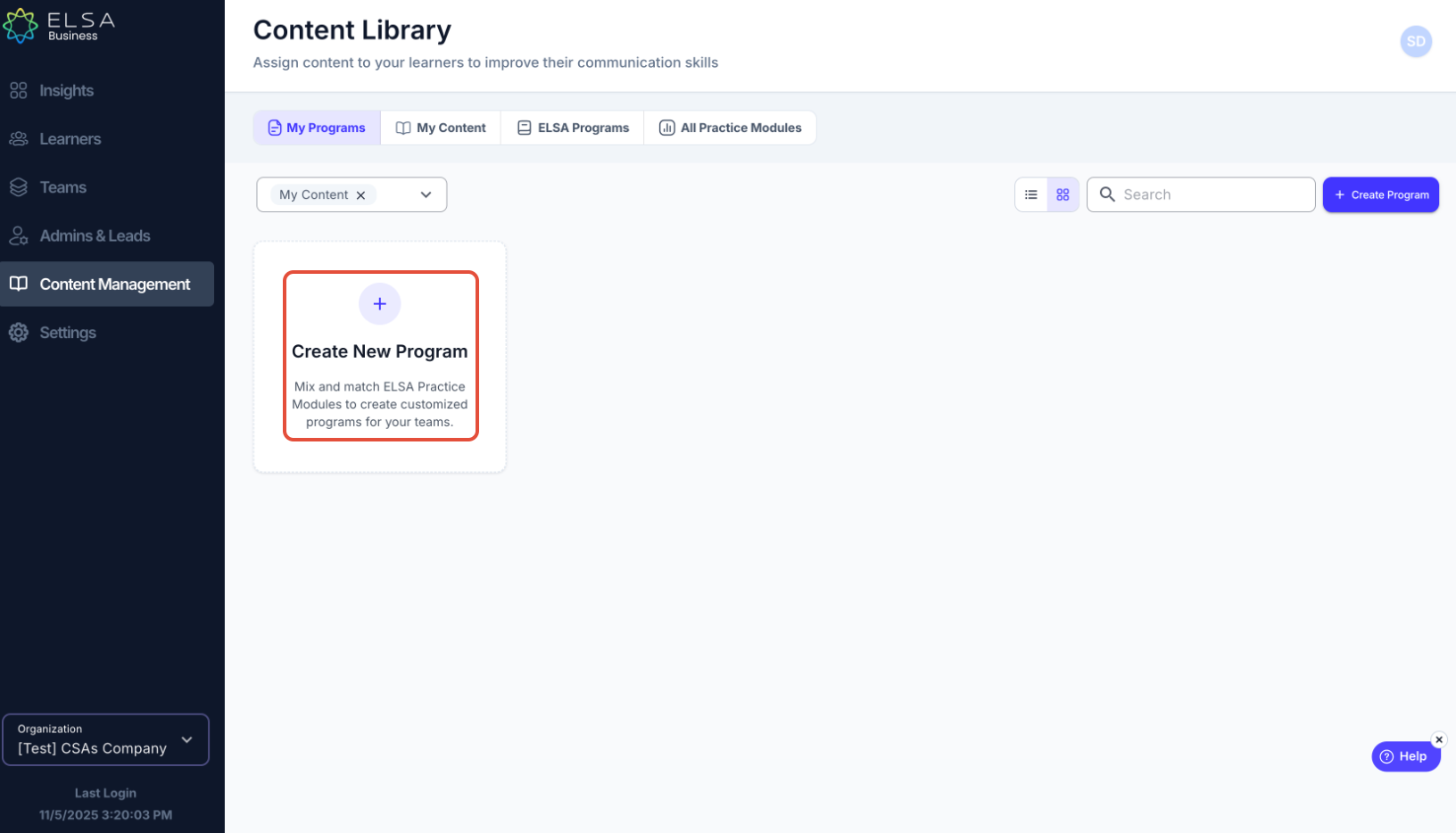
2. Click on the "Create Program" button.
Users can select content from various "Content Types" (including Topic, Book, Exclusive Book, Role-play, AI Unit), "Content from" (ELSA Programs or My Content), and "More filters" (Industry, Job Function, Communication Skills, Level, Test Preparation)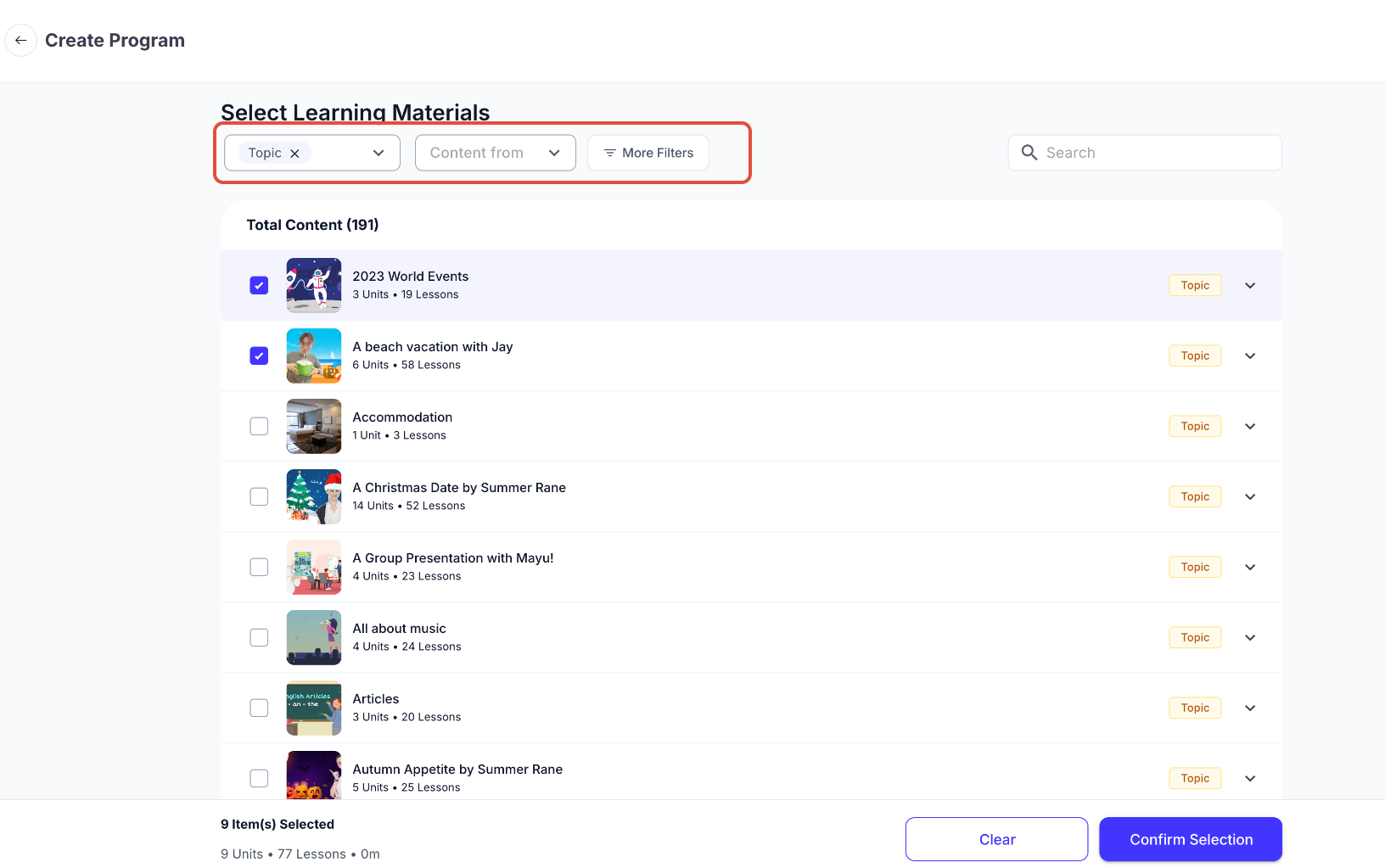
3. For the best learning experience, content should be carefully selected and organized at the unit level. This ensures meaningful learning outcomes for users.
4. Admins/Team Leads have the ability to reorder units, which will be automatically renumbered, or remove units as needed.
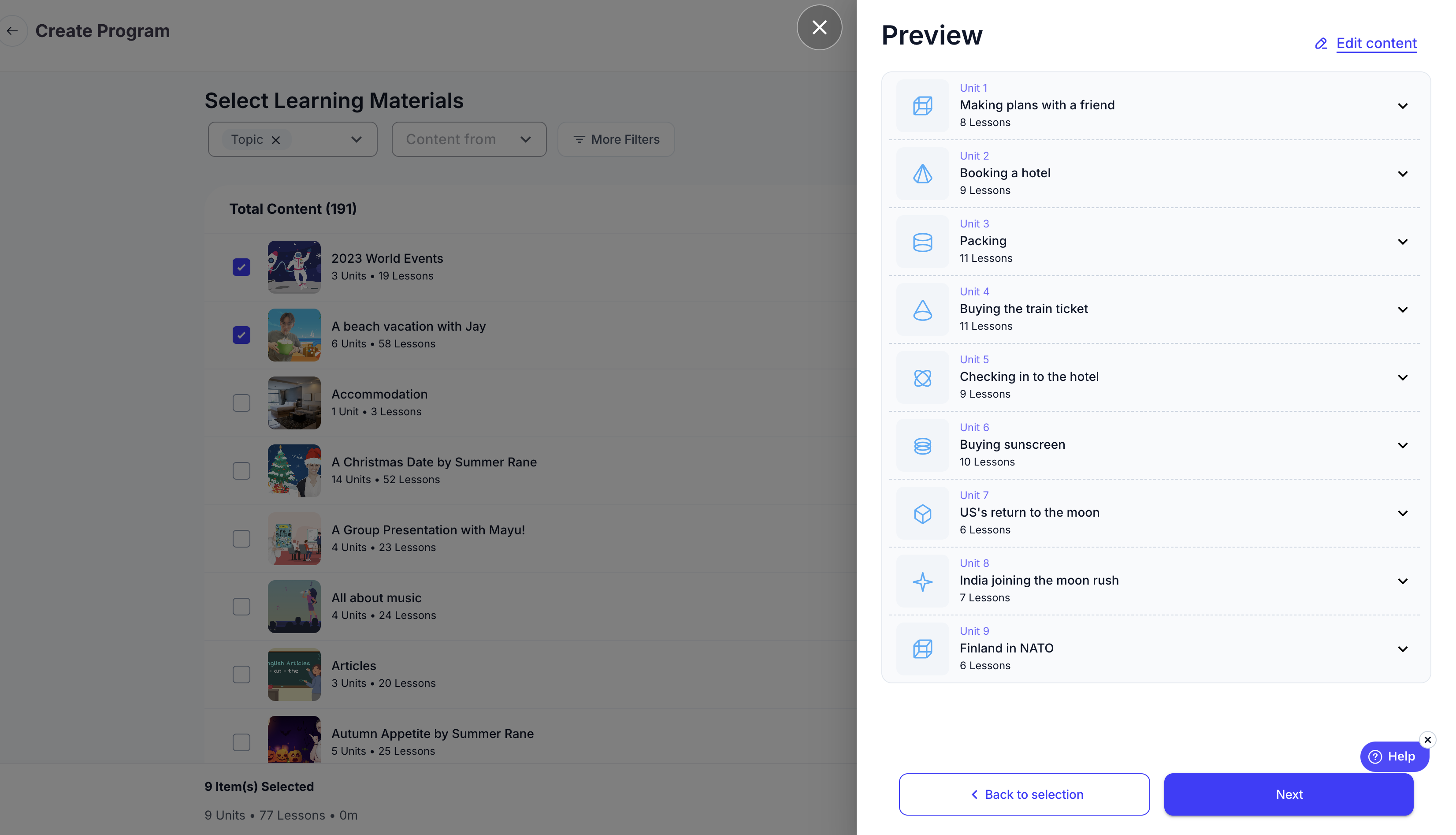
Important Note: Book content must be assigned in its entirety and cannot be combined or mixed with other types of content.
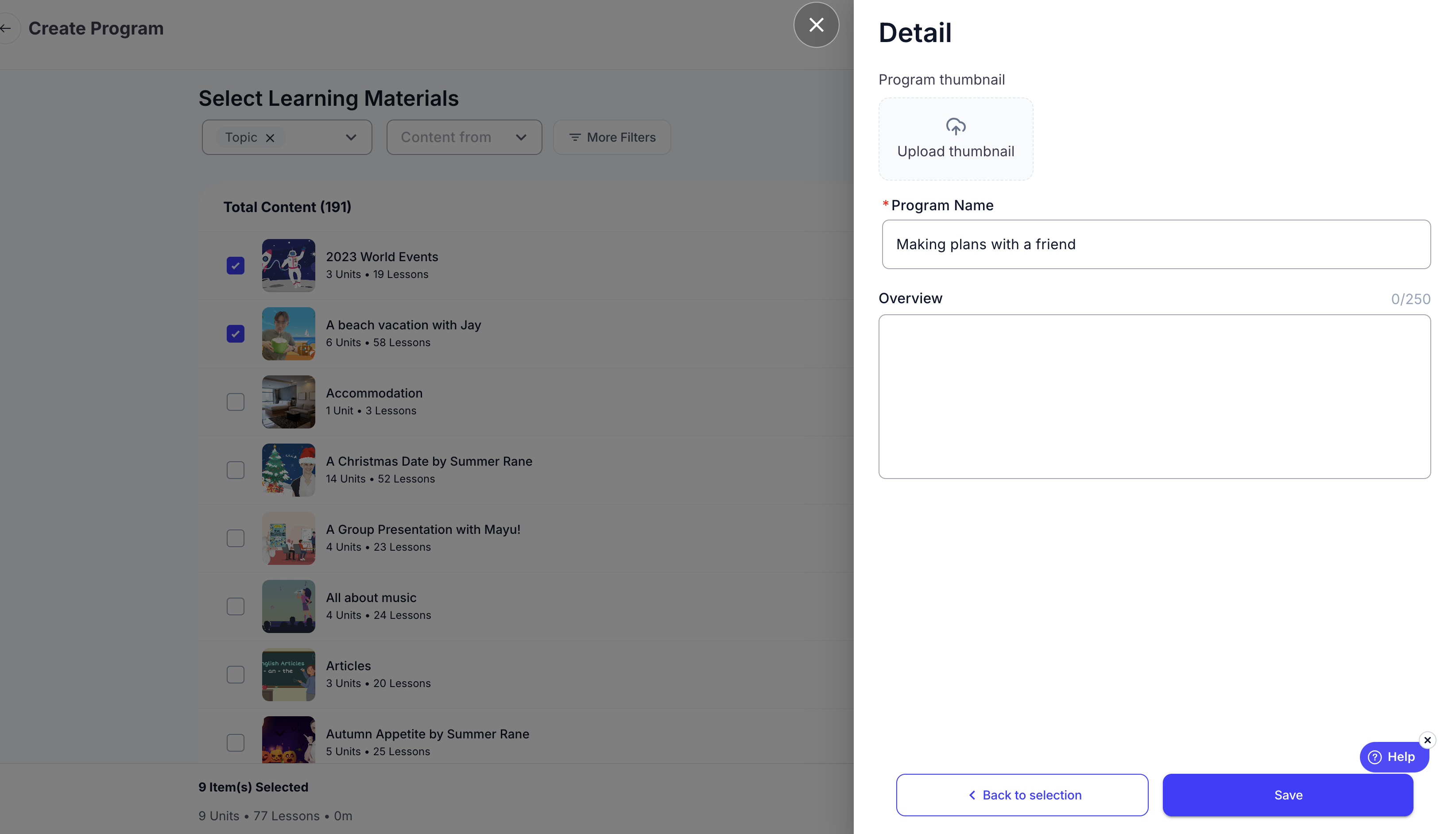
5. Admins/Team Leads can further customize the program by:
- Uploading a program image (default: company logo).
- Editing the Program Name (default: the first unit's name).
- Editing the Overview (default: same as the Program Name).
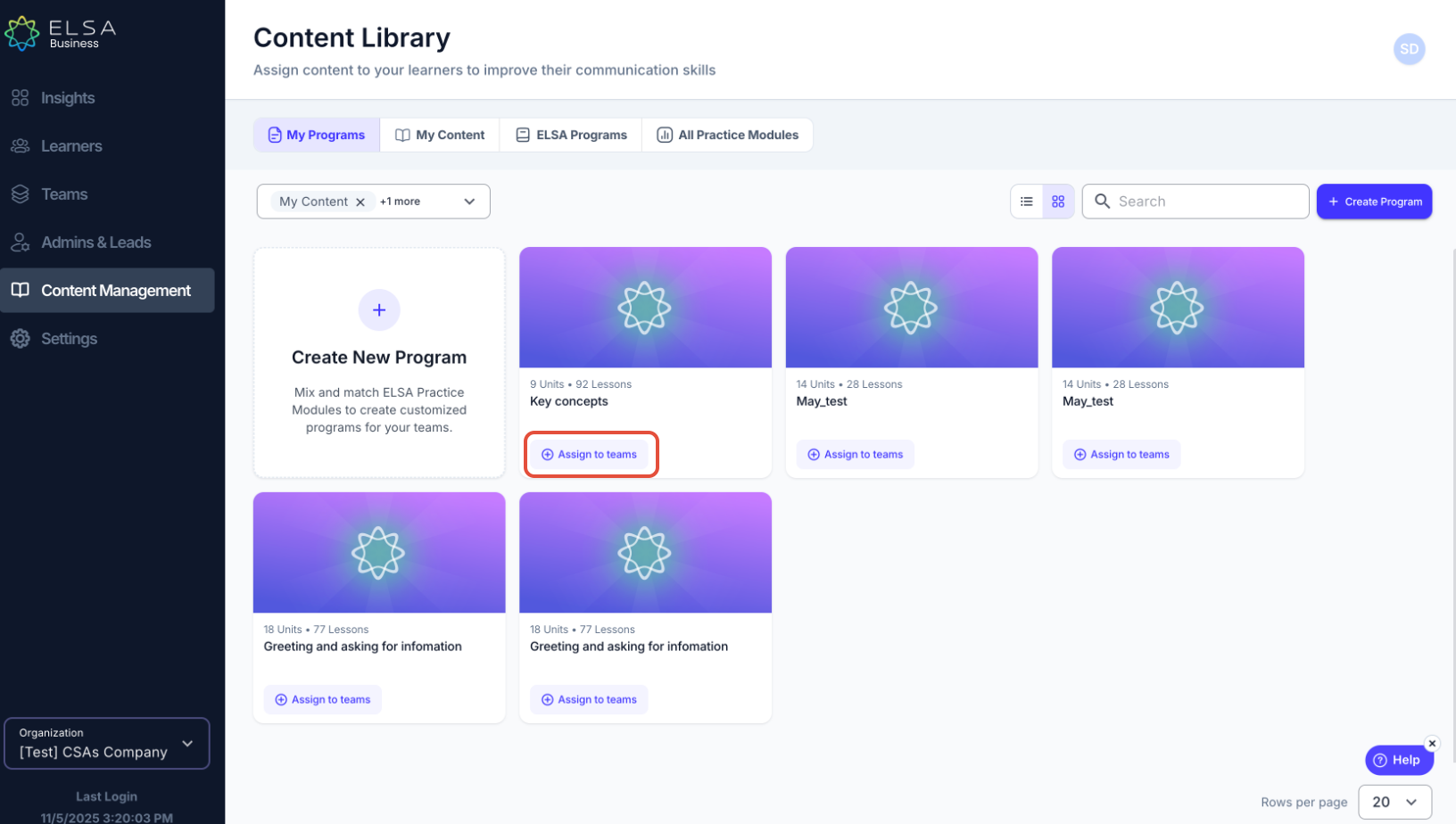
6. Newly created programs can be found in "My Programs." From there, Admins/Team Leads can proceed to assign the programs to specific teams.
Was this article helpful?
That’s Great!
Thank you for your feedback
Sorry! We couldn't be helpful
Thank you for your feedback
Feedback sent
We appreciate your effort and will try to fix the article