How to Create New Lessons with your content, please follow the steps below:
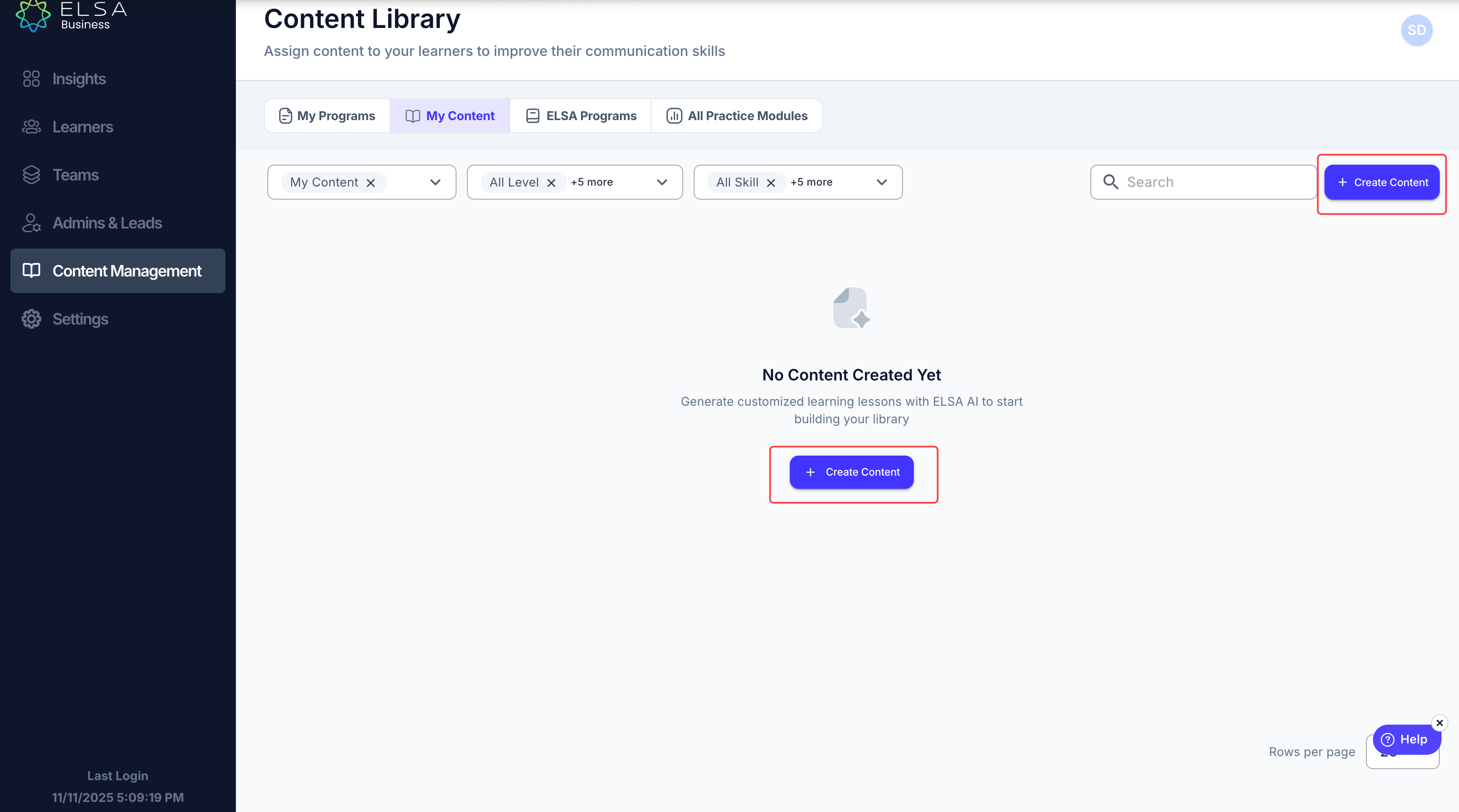
1. Accessing "My Content" tab
You can find this feature by going to the Content Management and clicking on “Create Content”, where you can initiate content creation using a simple, chat-style interface — no special expertise required.
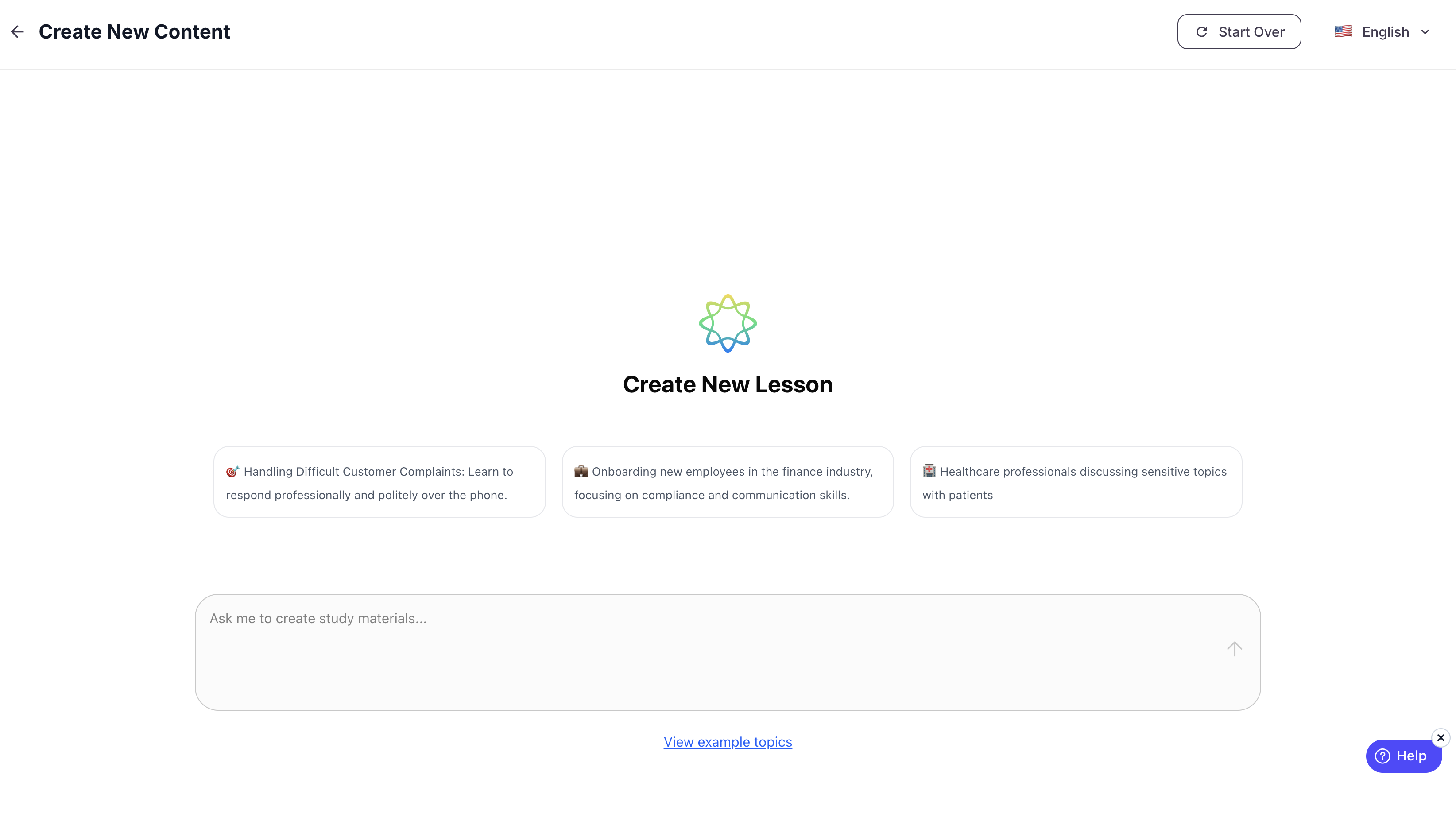
2. Defining the Content Brief
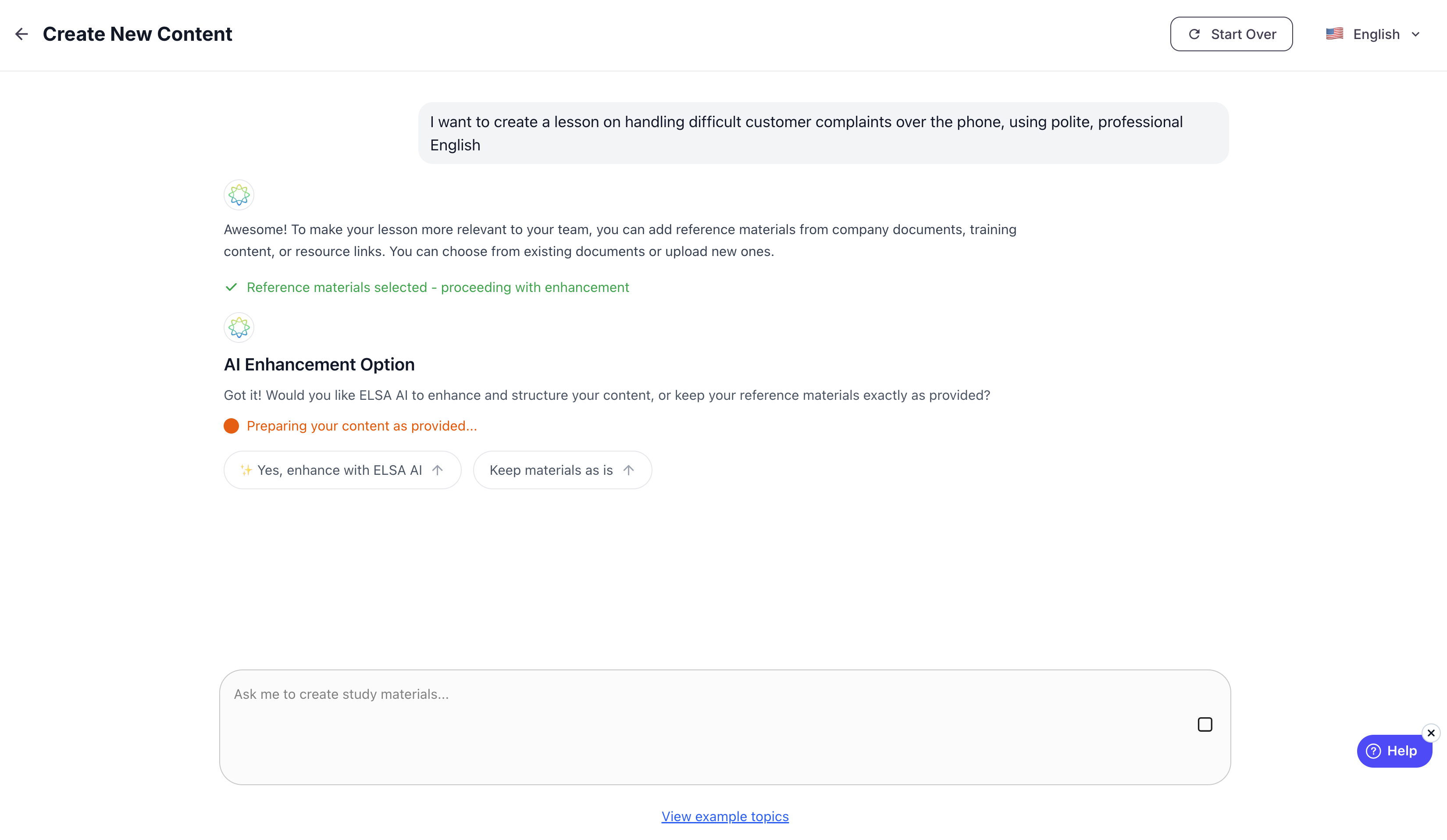
You simply enter a short prompt describing the content they want to create — such as “I want to create a lesson on handling difficult customer complaints over the phone, using polite, professional English.”
Based on this brief, the system will automatically generate a structured content draft, including a suggested title, description, and lesson unit containing multiple lessons and exercises, which can be customized in the following steps.
Notes: The current release of Content Creator accepts briefs in most languages supported by ChatGPT (58 languages)
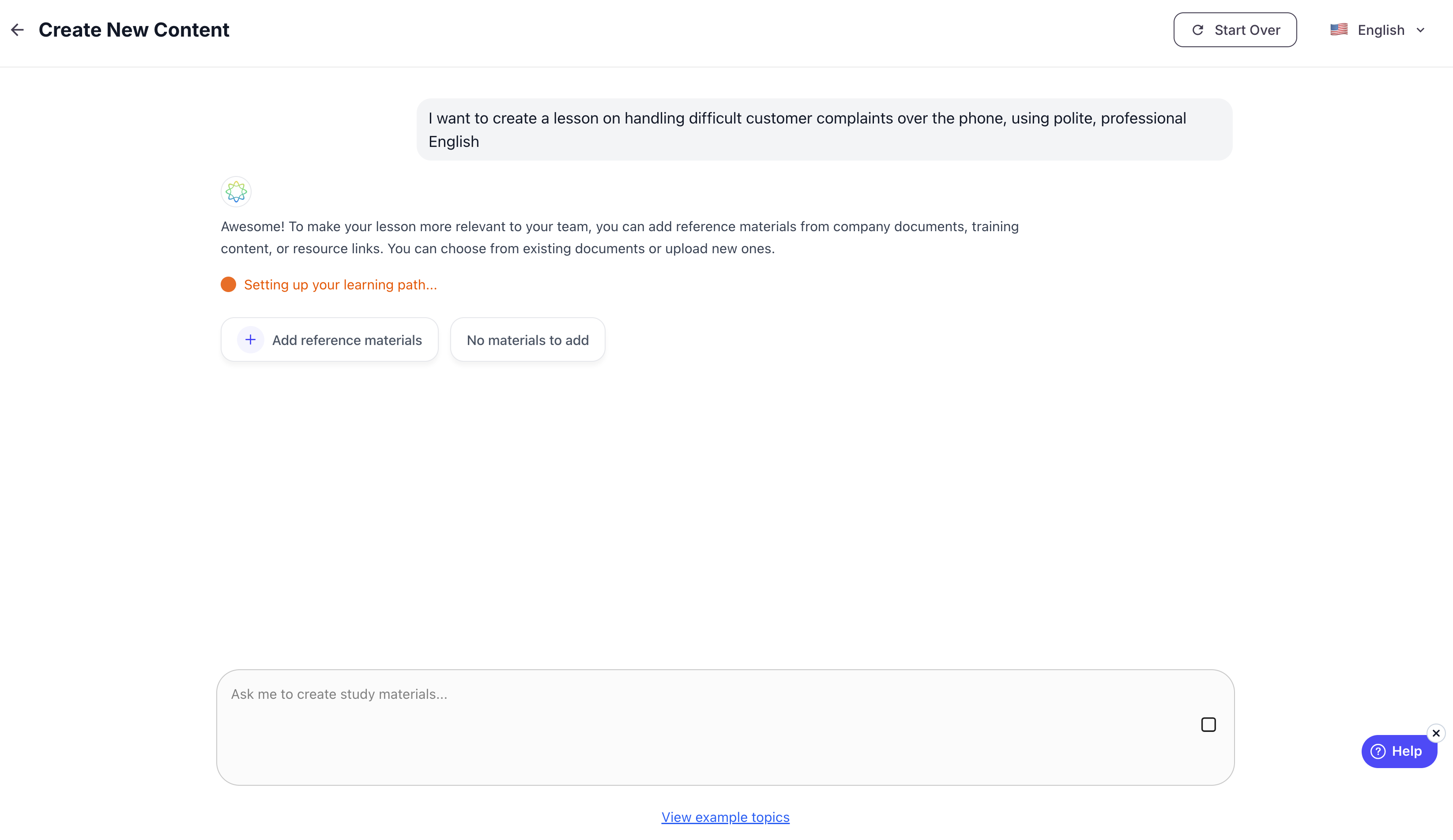
3. Enrich Content Creation with AI Learning Agent
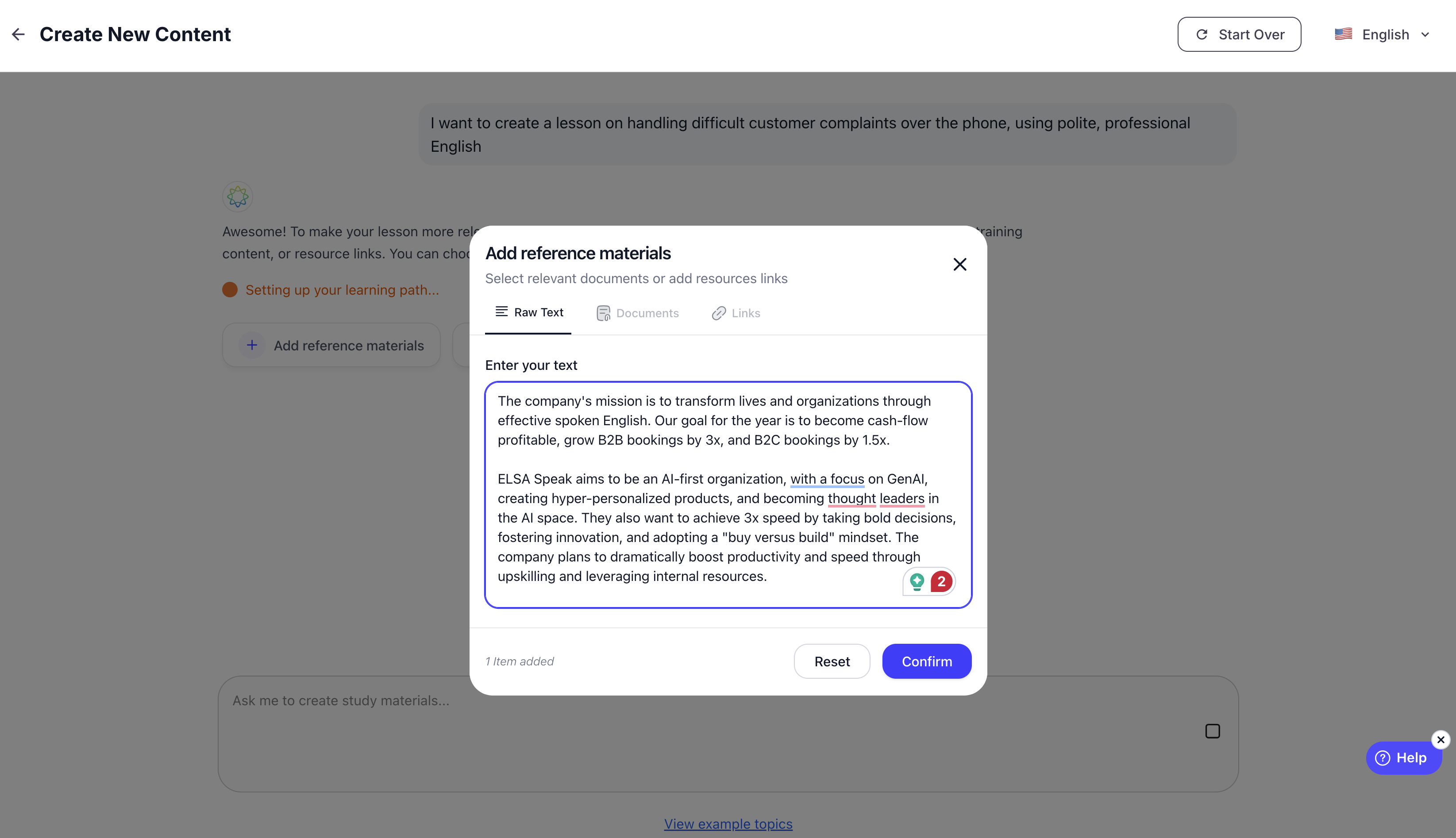
For company-specific learning needs, you can select previously uploaded documents or upload new ones — such as PDFs, URLs, or internal training materials.
The AI will analyze the content in context with the initial brief and extract relevant passages, terminology, or scenarios.
You retain full control, with the ability to review, approve, or exclude specific documents or sections before content is generated.
4. Enhance Content with AI
On the next step of Content Creation, after inputting the brief, you can choose how the system should treat this input:
Yes, enhance with ELSA AI: Take content input and enrich with AI to be added to lessons
Input As-Is (Keep materials as-is): Take content input and ensure all words added as input are used in the lessons generated — ideal for those who have a defined curriculum.
5. CEFR Level Selection
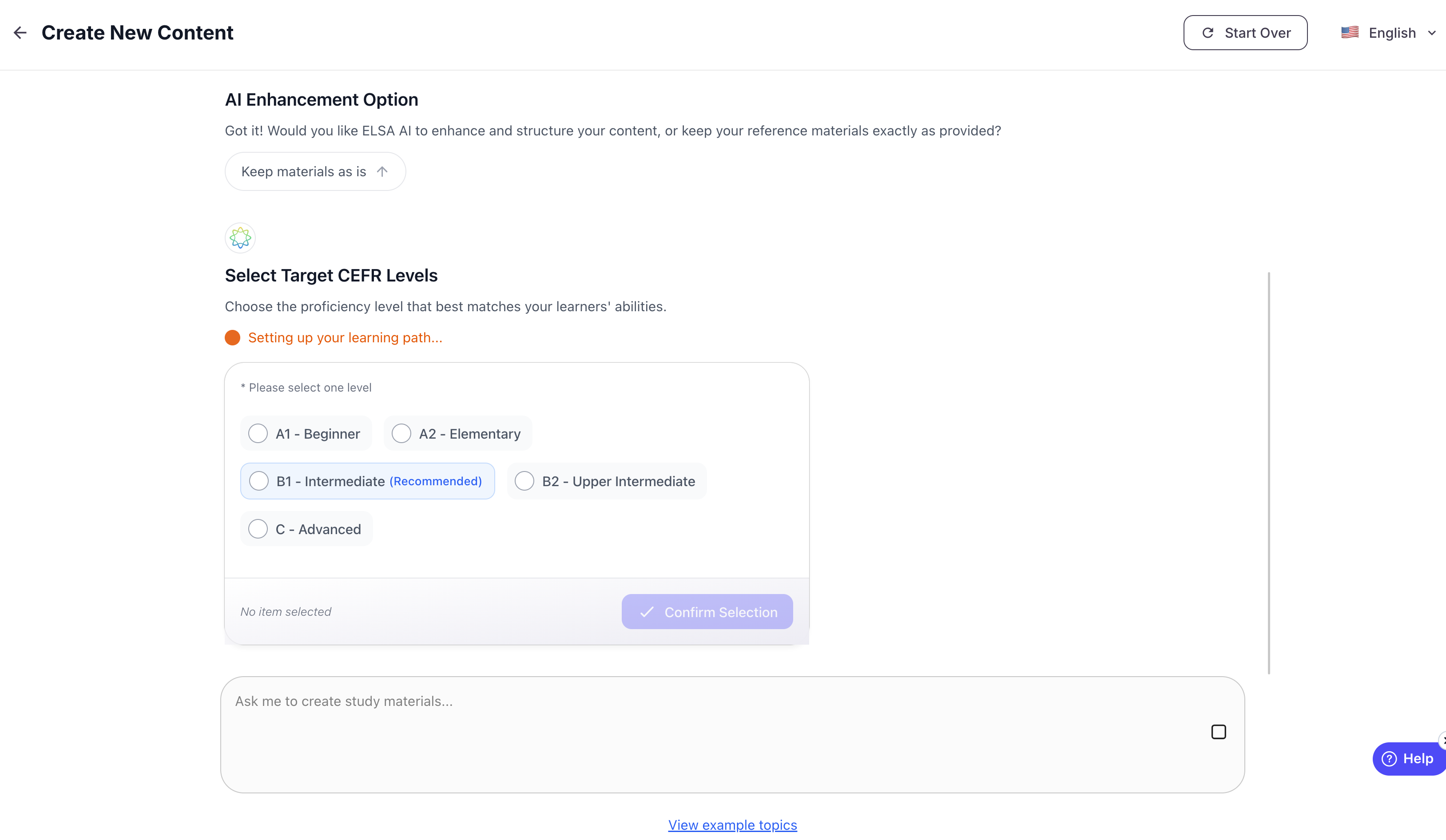
After submitting the initial content brief, admins can select the target CEFR level for the generated content from A1 (Beginner) to C (Advanced).
We recommend selecting B1 – Intermediate as a starting point, as it provides the most balanced level of content and remains useful across a wide range of learners, from A1 to C.
Once selected, the AI will automatically tailor the lesson output and game types to match the selected CEFR level
Example:
A1 will only have 10 game types available
C will only have 7 game types available
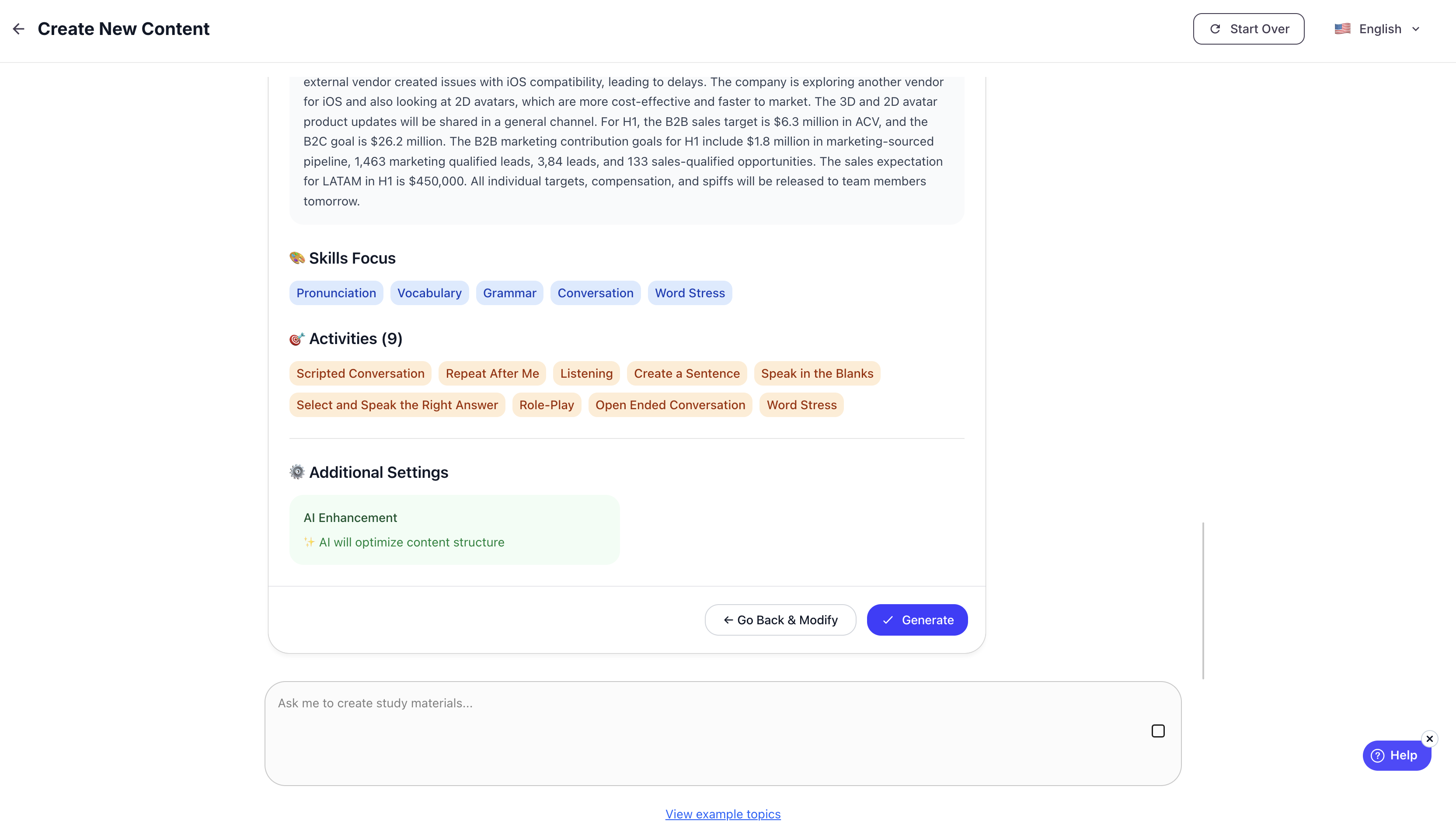
6. Skill Focus and Game Types Selection
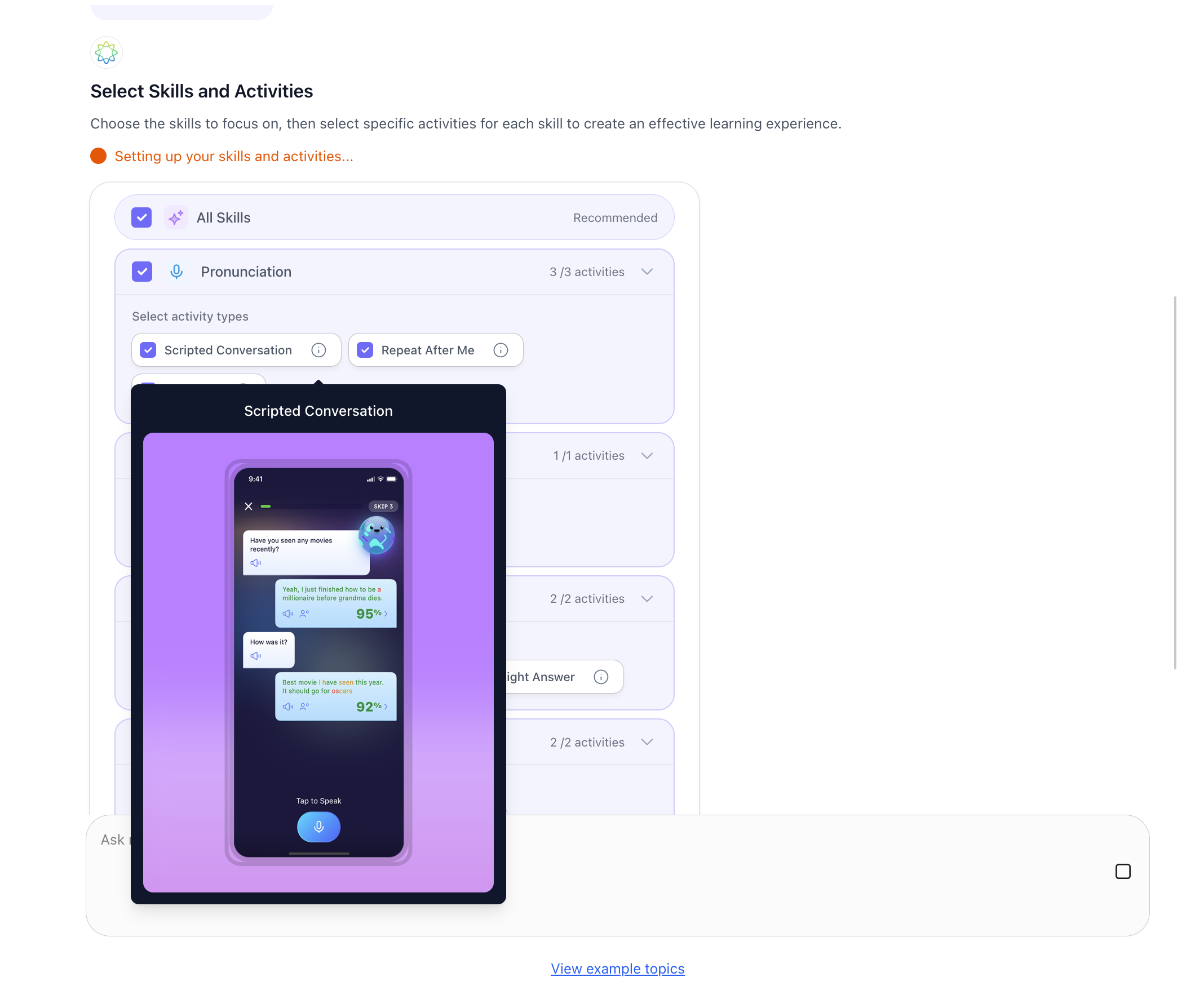
After configuring the CEFR level, you can fine-tune the learning experience by selecting specific skill focus areas and associated game types that match your organization’s training goals.
Admins can select one or more skill focus areas below, each linked to a curated set of game types designed to target that specific learning objective:
Pronunciation:
- Repeat After Me
- Listening
- Scripted Conversation
Vocabulary:
- Which One Doesn’t Belong
- What’s the Match?
- Create a Sentence
Grammar:
- Speak in the Blanks
- Select and Speak the Right Answer
- Unscramble Sentence
Fluency:
- Role Play
- Open-Ended Conversation
Word Stress
- Word Stress
7. Number of Lessons & Exercises
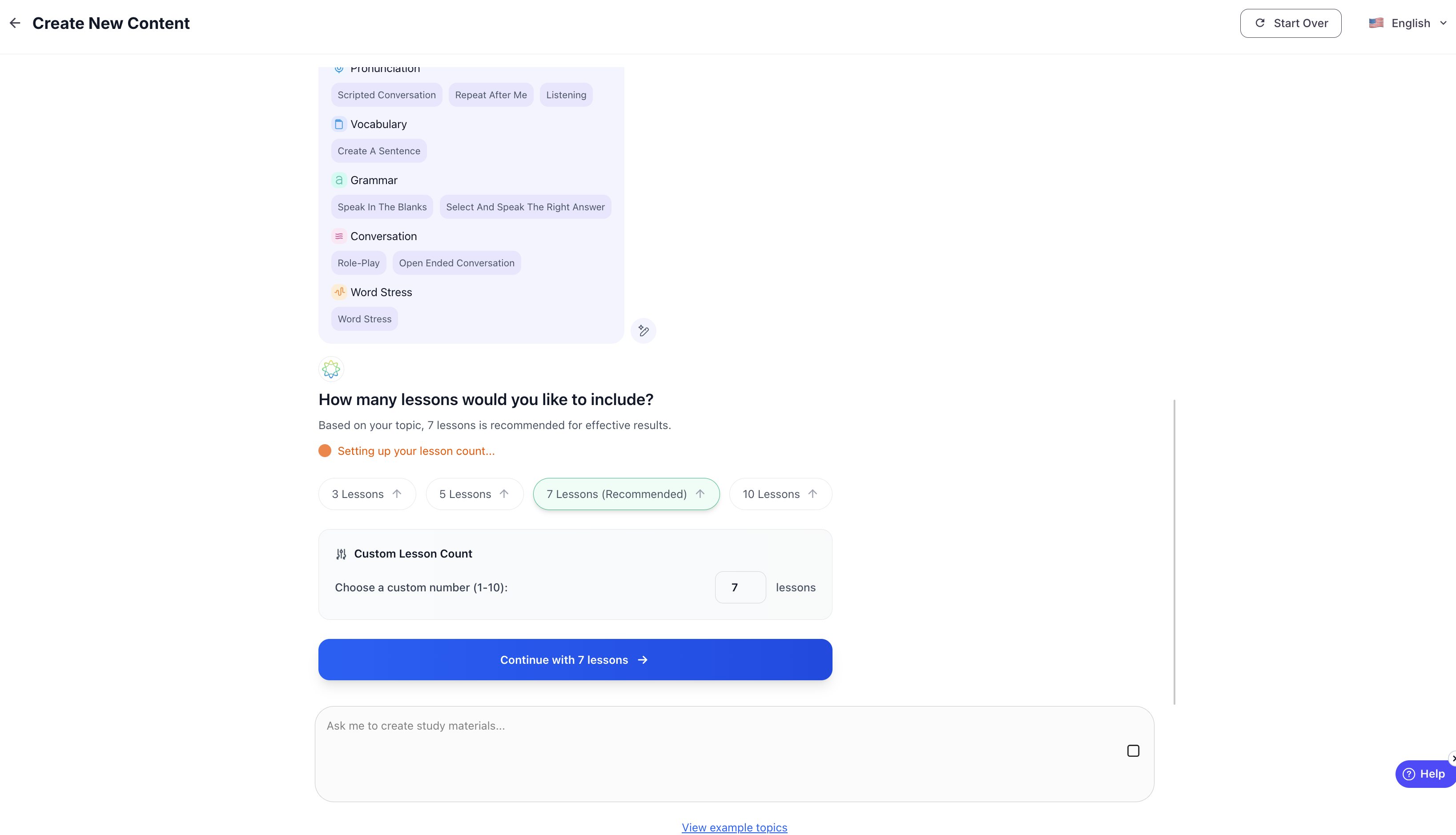
After selecting the skill focus and game types, you can define the scope of the generated content by specifying how many lessons you want the system to create.
The AI will generate a single unit of lessons and exercises according to the selected parameters, following the Unit > Lesson > Exercise structure.
Note: You can later combine this AI-generated Unit with other Units to create your own structured Program in ELSA Business Admin
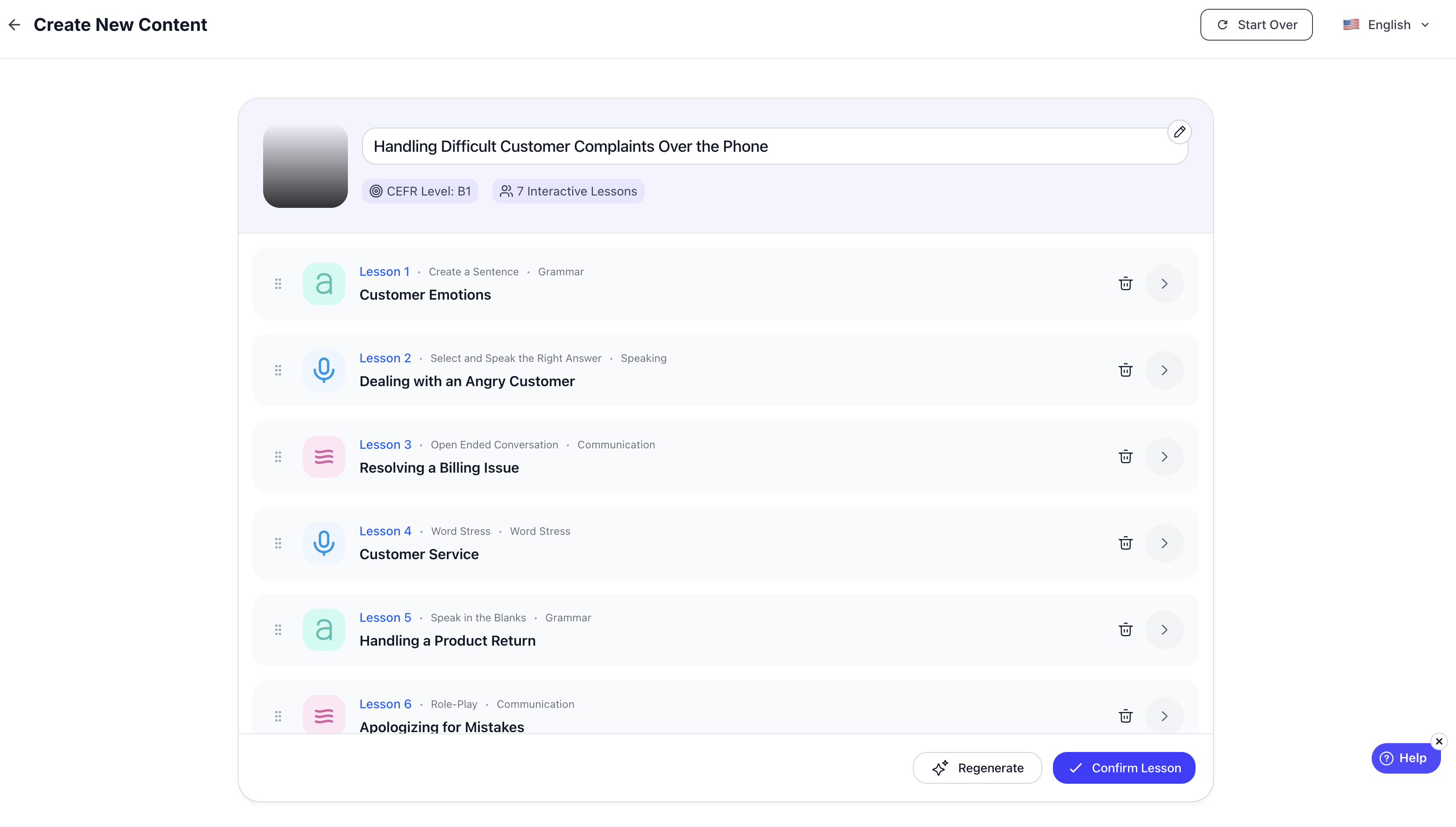
8. Reviewing Generated Content
Once configuration is complete, the AI instantly generates structured content following a clear Unit > Lesson > Exercise hierarchy.
You can view a real-time, scrollable preview that closely mirrors how the content will appear in the learner experience.
Each preview includes:
Auto-generated lesson titles and topics
A clear list of exercises within each lesson
The specific game type assigned to each exercise
This allows you to easily assess the relevance and structure of the content before assigning it to learners.
9. "Confirm Lesson" and your lesson will be created successfully
Once everything looks good, click “Confirm Lesson.”
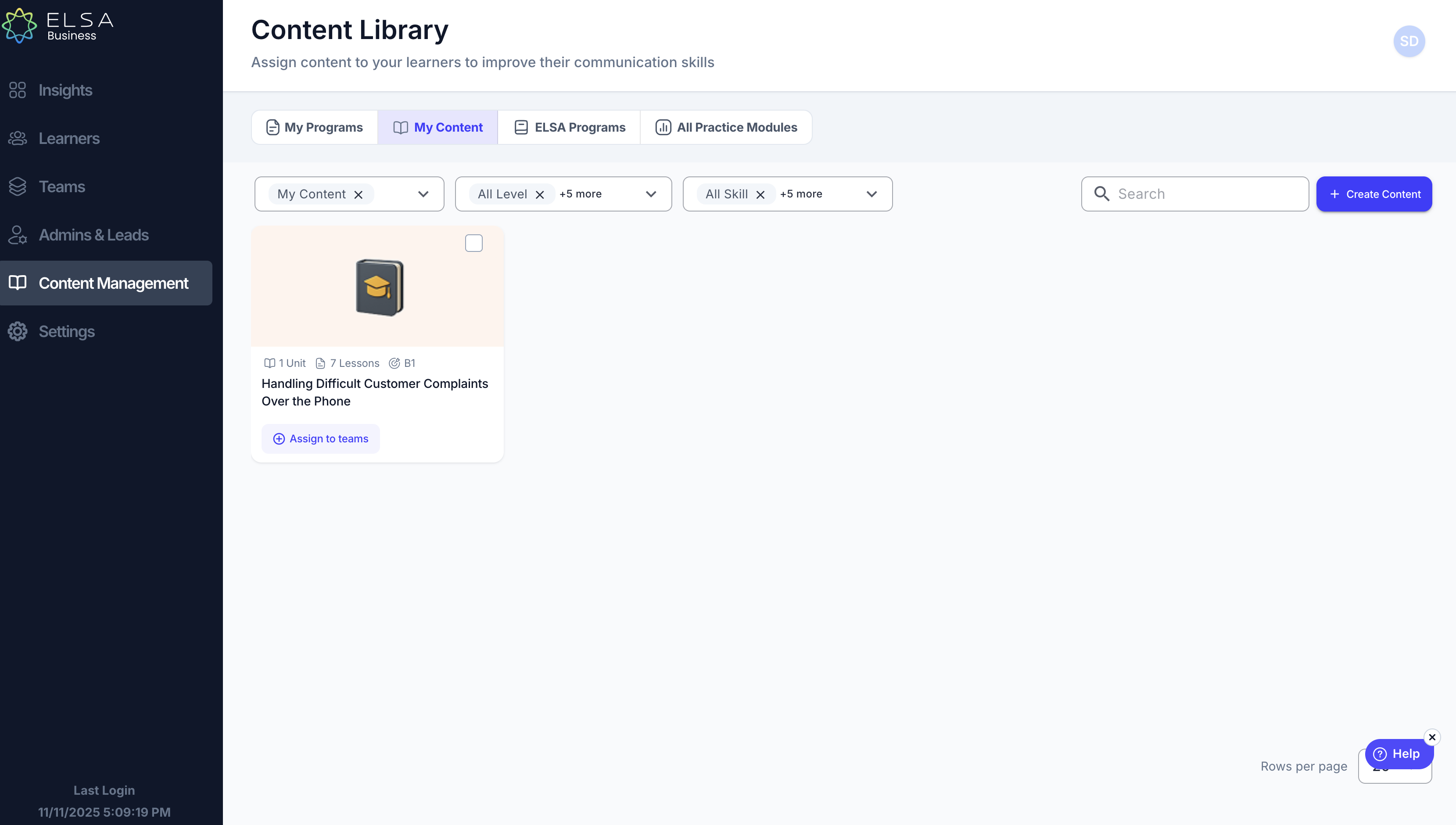
Your lesson will be created successfully, and you’ll be redirected to the “My Content” page, where you can assign it to your teams.
Was this article helpful?
That’s Great!
Thank you for your feedback
Sorry! We couldn't be helpful
Thank you for your feedback
Feedback sent
We appreciate your effort and will try to fix the article