Managing Team: Update Team Information, Invite Learners, and Deactivate Learner
1. In the Team tab, you can manage your organization's teams. Click the ellipsis on the right to view and manage team details.
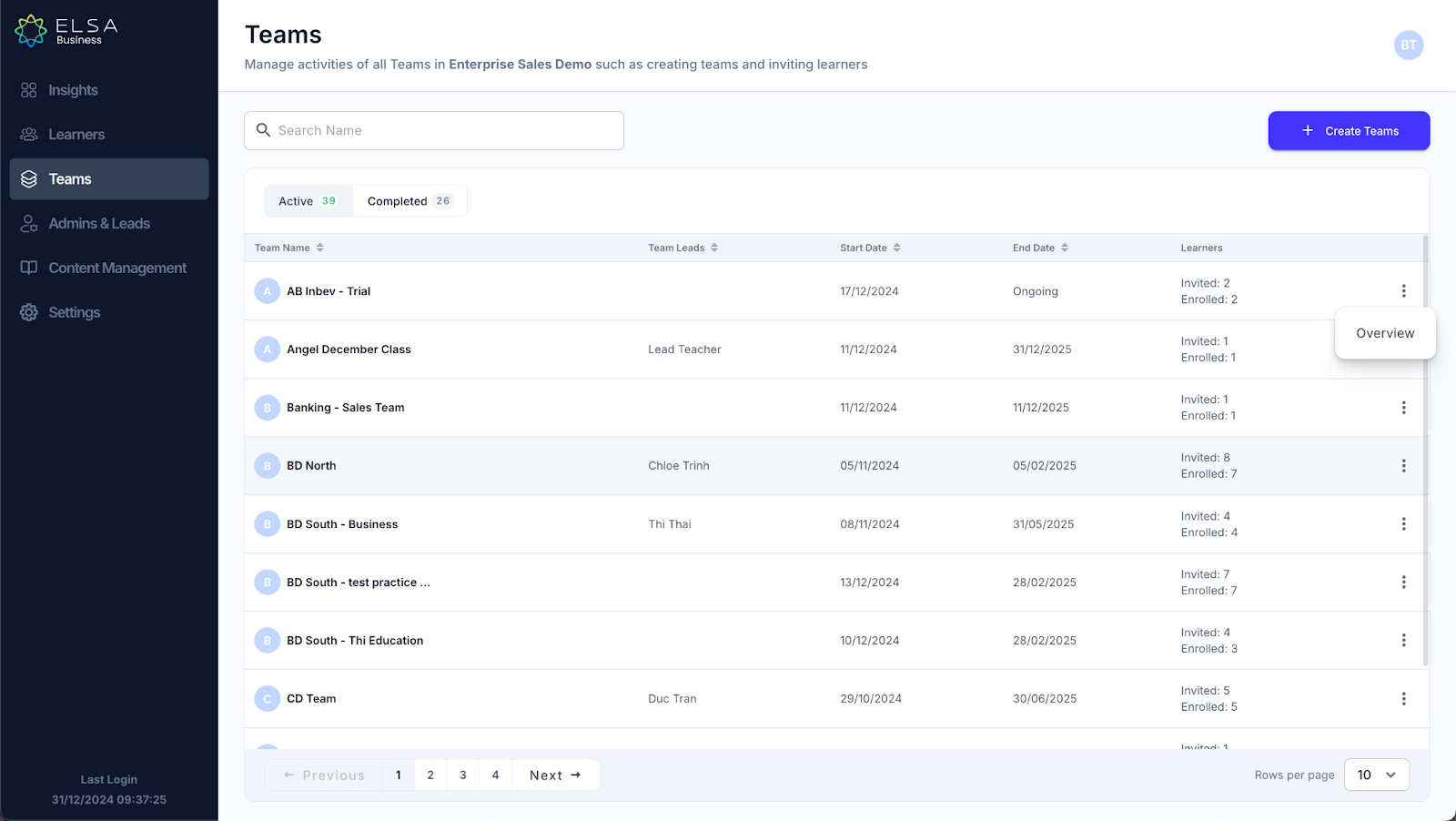
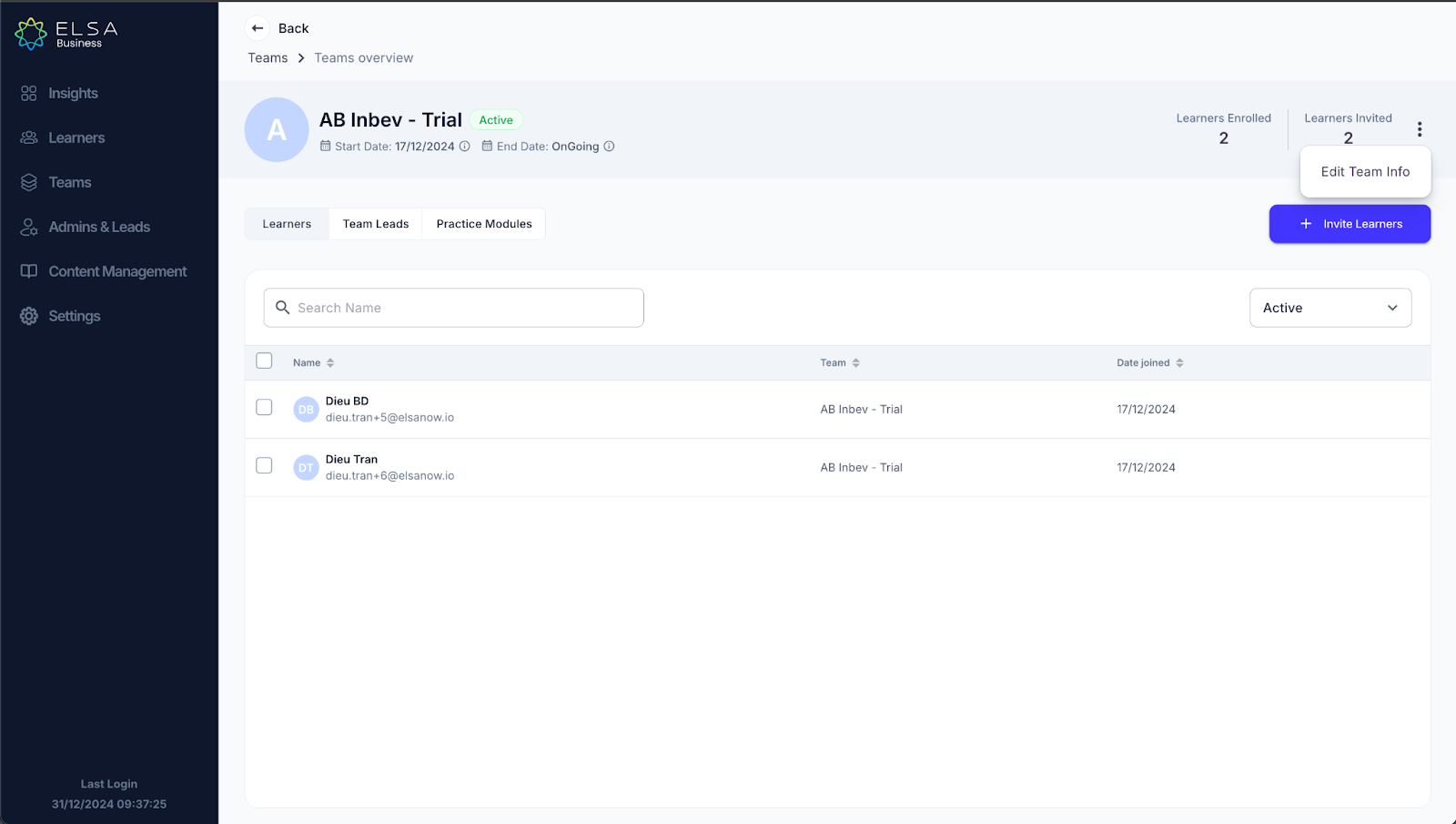
2. Here, you can view enrolled and invited learners, switch between team leads, and assigned practice modules.
To update team information, click the ellipsis and select "Edit Team Info."
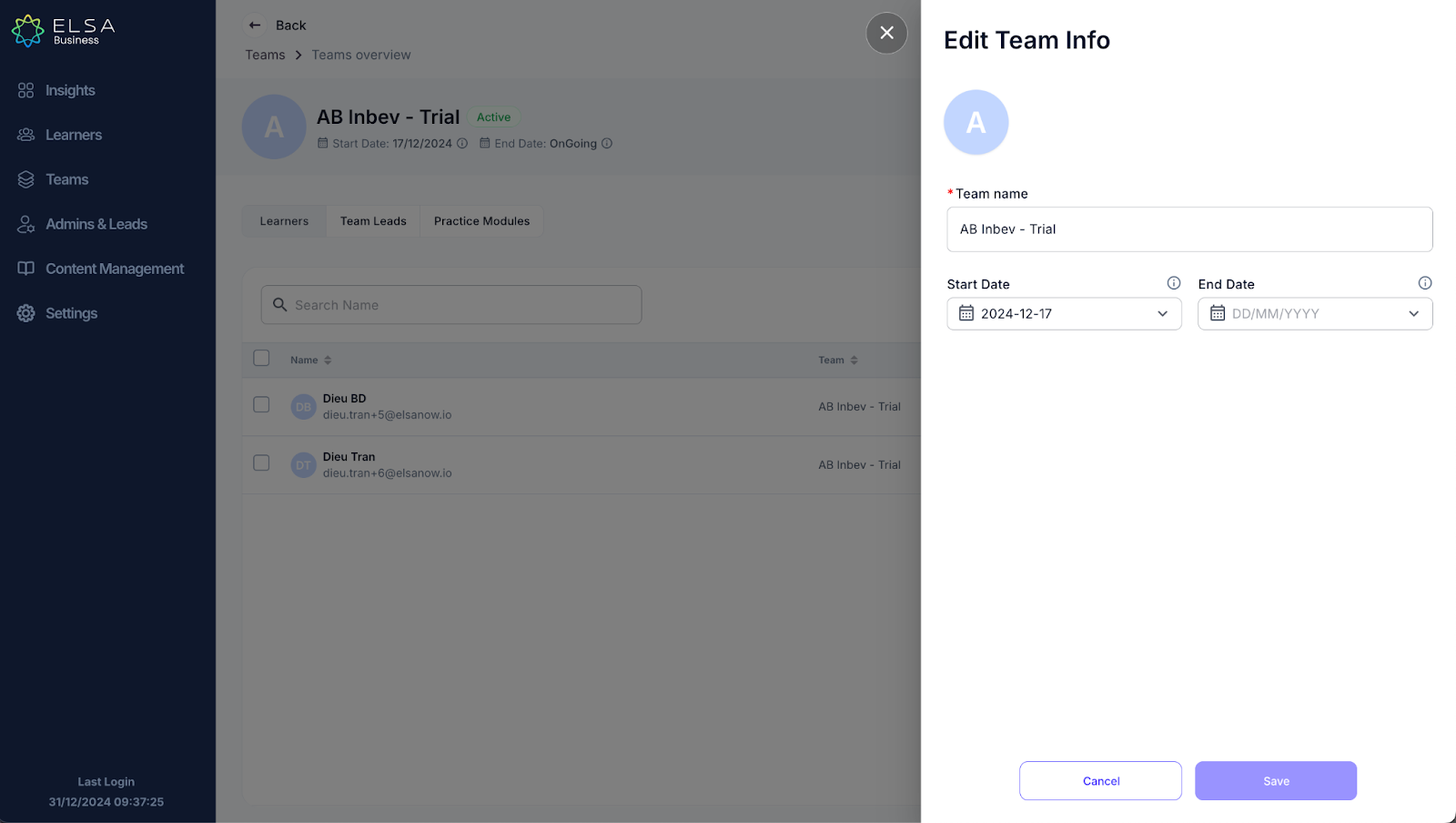
3. You can edit the team name and learning period in the edit team info settings.
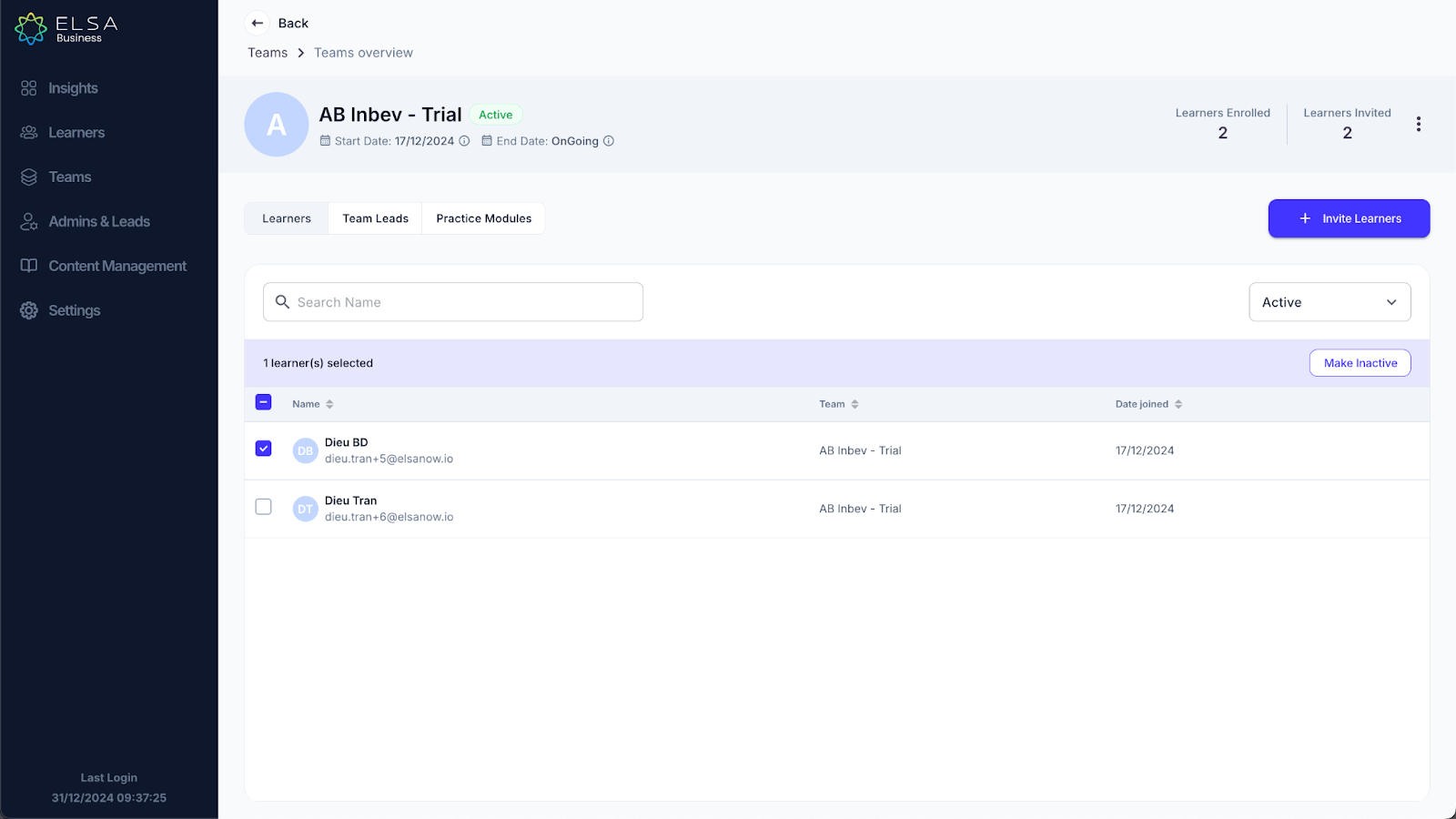
4. You can also invite new learners by clicking “Invite Learners” or deactivate existing ones by selecting the learner/team lead and clicking "Make Inactive."
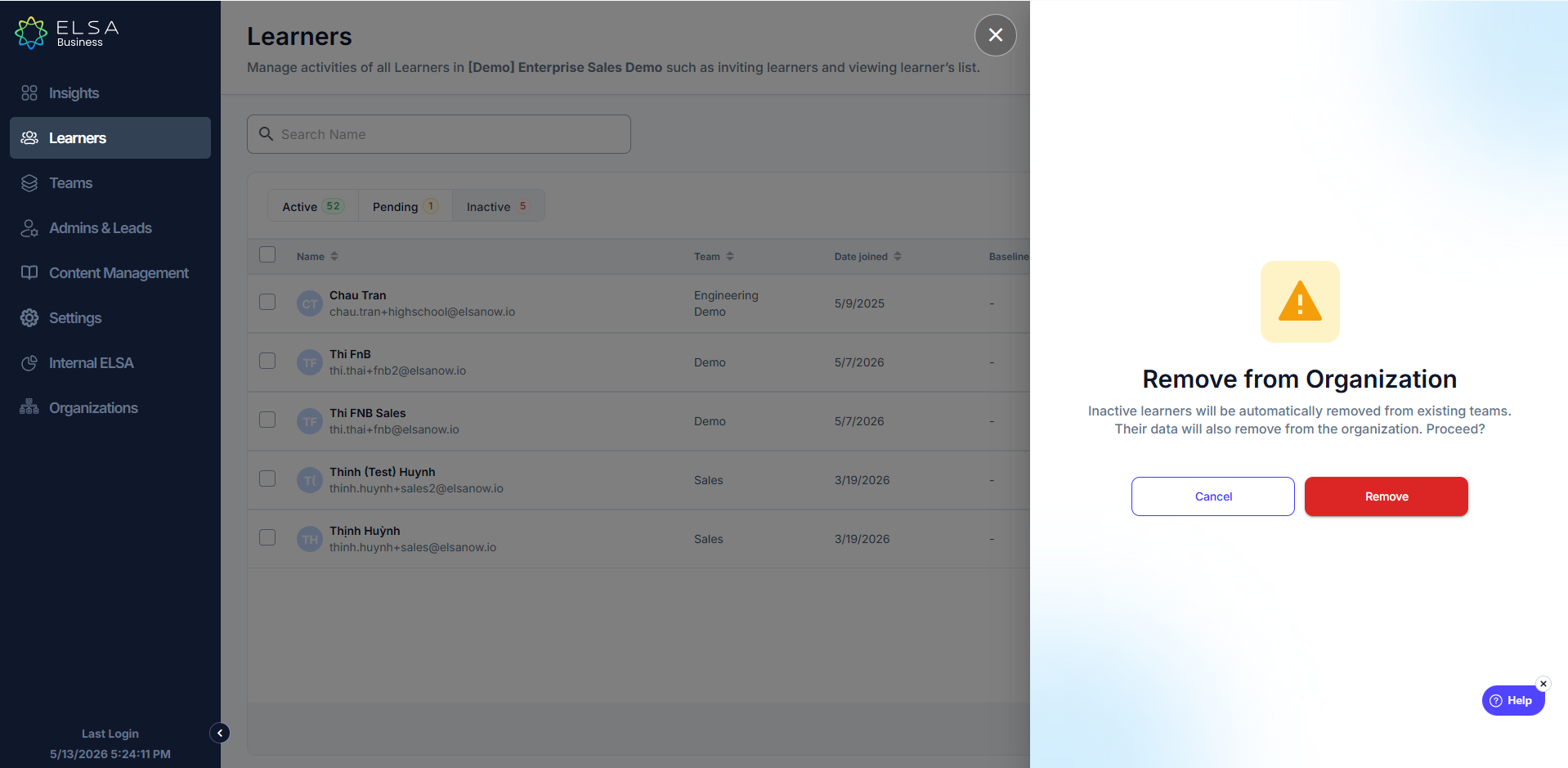
5. On the inactive list, you can still Reactivate the learners or choose Remove from Organization once they are no longer joining the program.
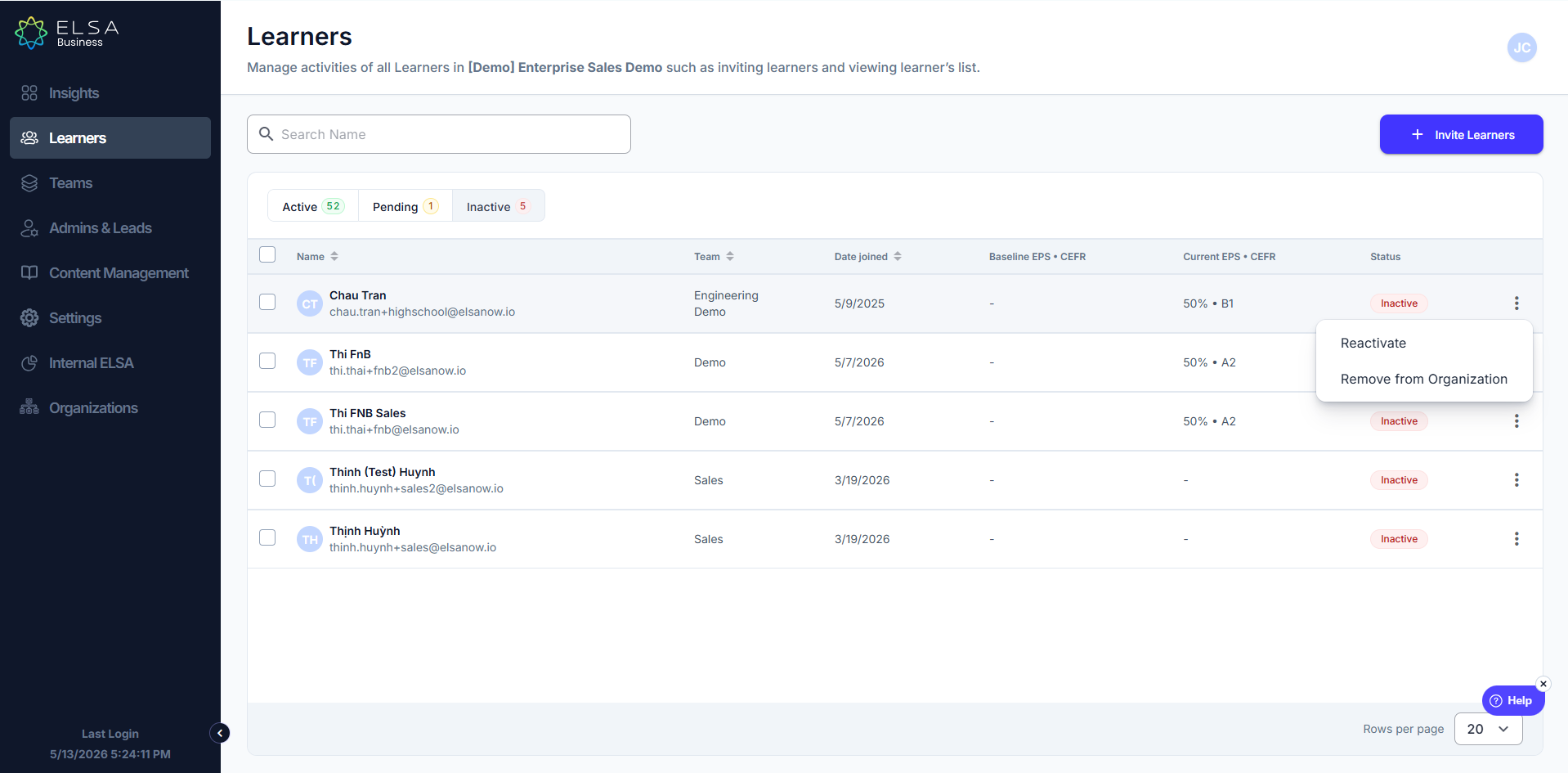
Note: Once you remove their data will also remove from the organization
Was this article helpful?
That’s Great!
Thank you for your feedback
Sorry! We couldn't be helpful
Thank you for your feedback
Feedback sent
We appreciate your effort and will try to fix the article