To assign ELSA lessons as Practice Modules to your team, please follow the steps below:
1. Navigate to Content Management in the left-hand sidebar menu and choose "Practice Modules". Please ensure that you are on the "ELSA Programs" tab.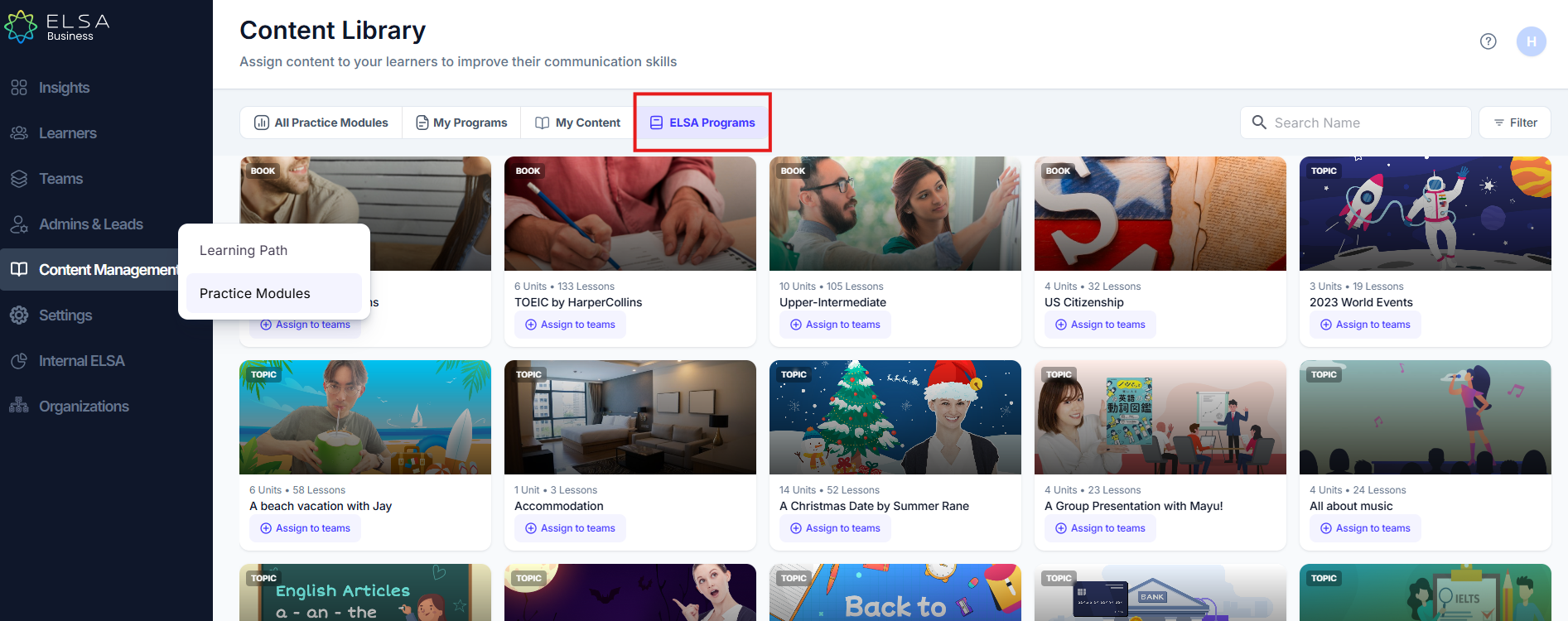
2. Browse through the list of ELSA lessons and locate the one you wish to assign to your team.
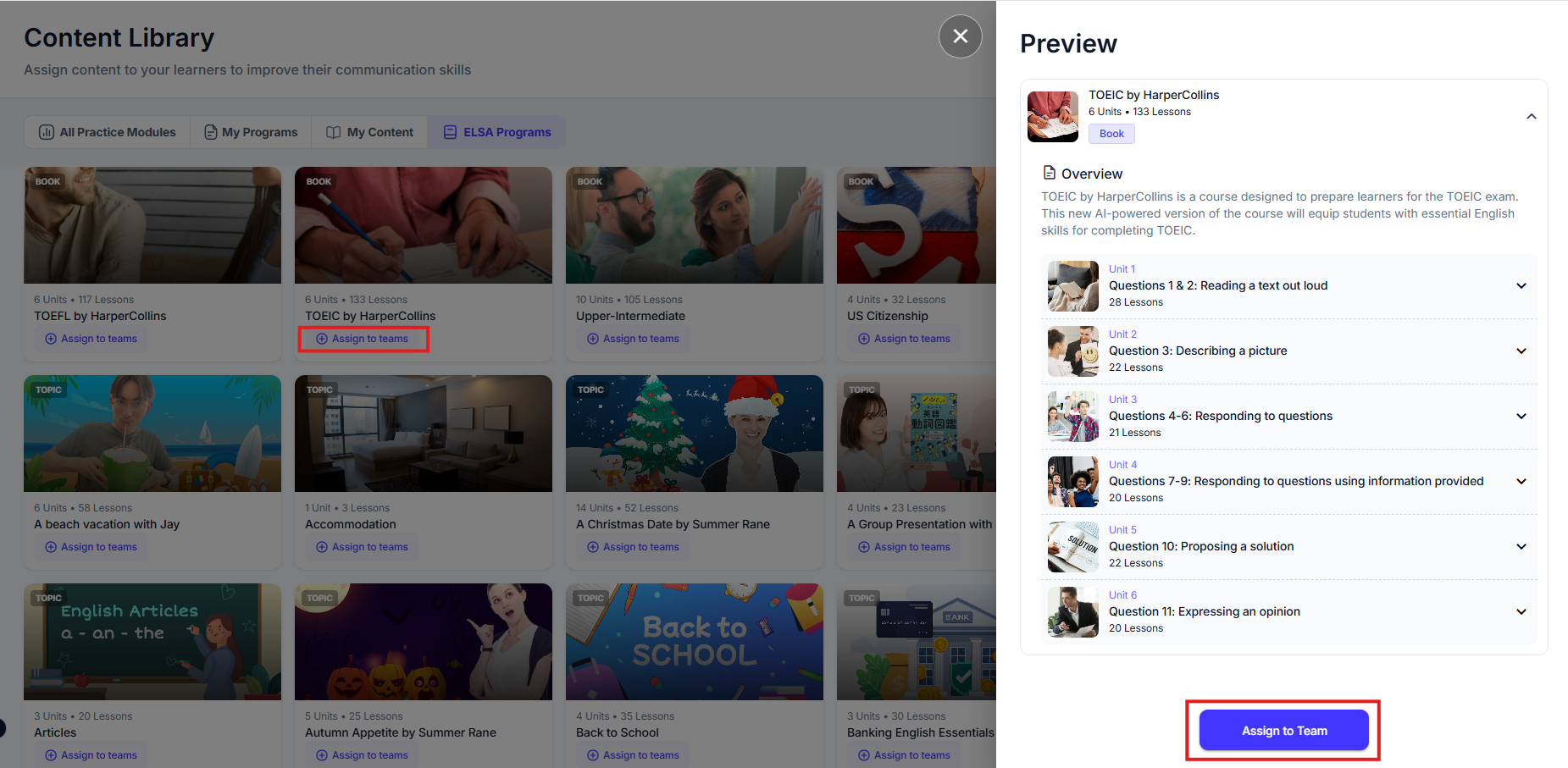
3. Once you've found the desired practice module, click on the "Assign to teams" button located at the bottom of the module's card.
4. You will see a preview of the Practice Module contents. You can review the contents and click "Assign to Team" to continue.
A side-bar will open, and you will be able to see:
- Practice Module Title
- Overview of the Practice Module
- Lesson Units
- Lesson Details
5. A "Setting" panel will appear, in which you can customize the Content settings when assigning it to teams. Inputs will be pre-filled to speed up the process for users. You will be able to customize:
- Title: Defaults to content name; editable by users.
- Team(s): Must be selected by users (no default); multiple teams allowed.
- Start Date: Defaults to "Assign Now"; can be set for a future date.
- End Date: Defaults to one week after Start Date; cannot be before it.
- Reminders: Defaults to 2 days before the Due Date; adjustable.
- Email Reminder: Sends a notification to learners who haven't completed the assignment.
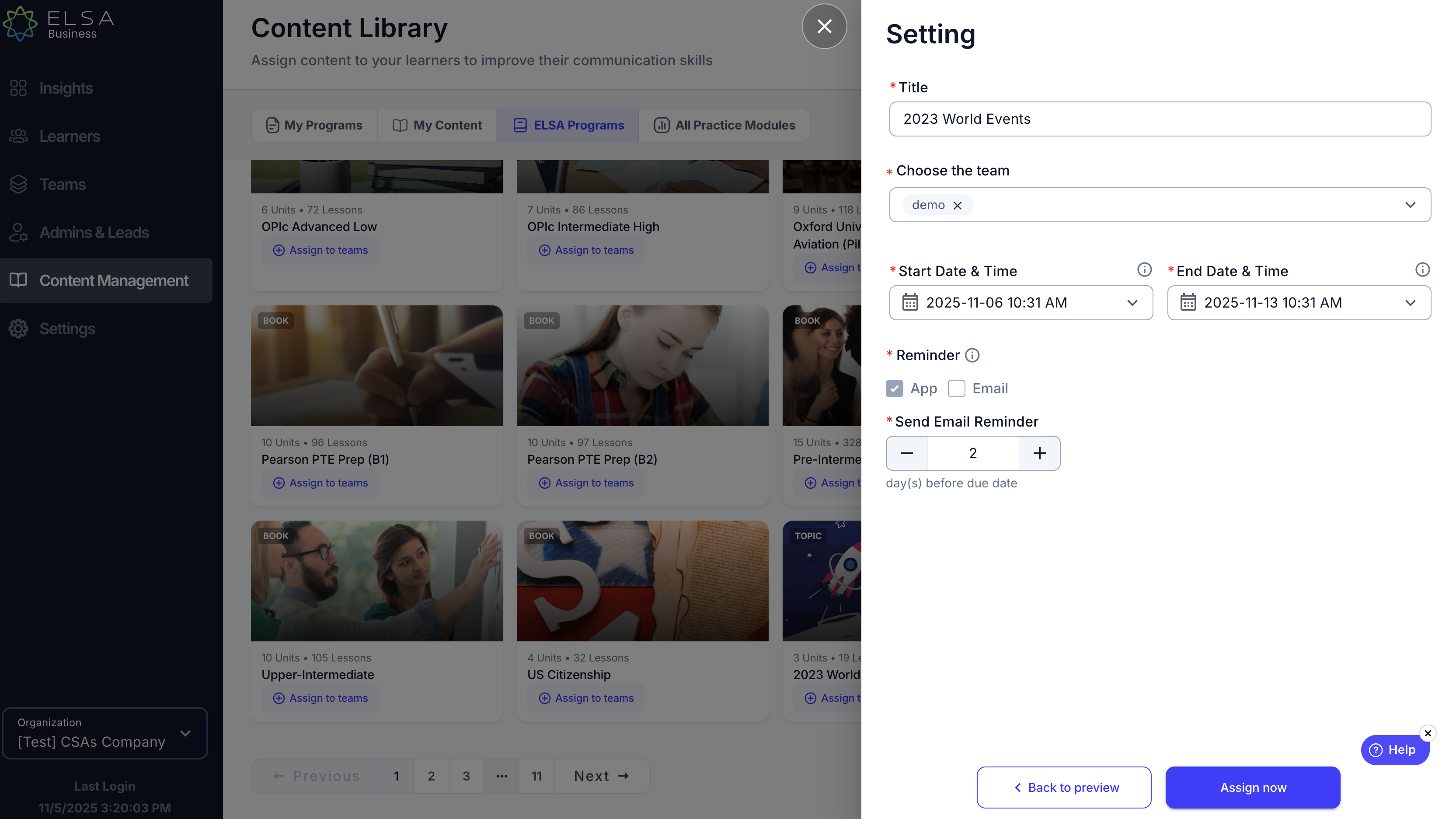
6. Click "Assign now" to assign the Practice Module to your team.
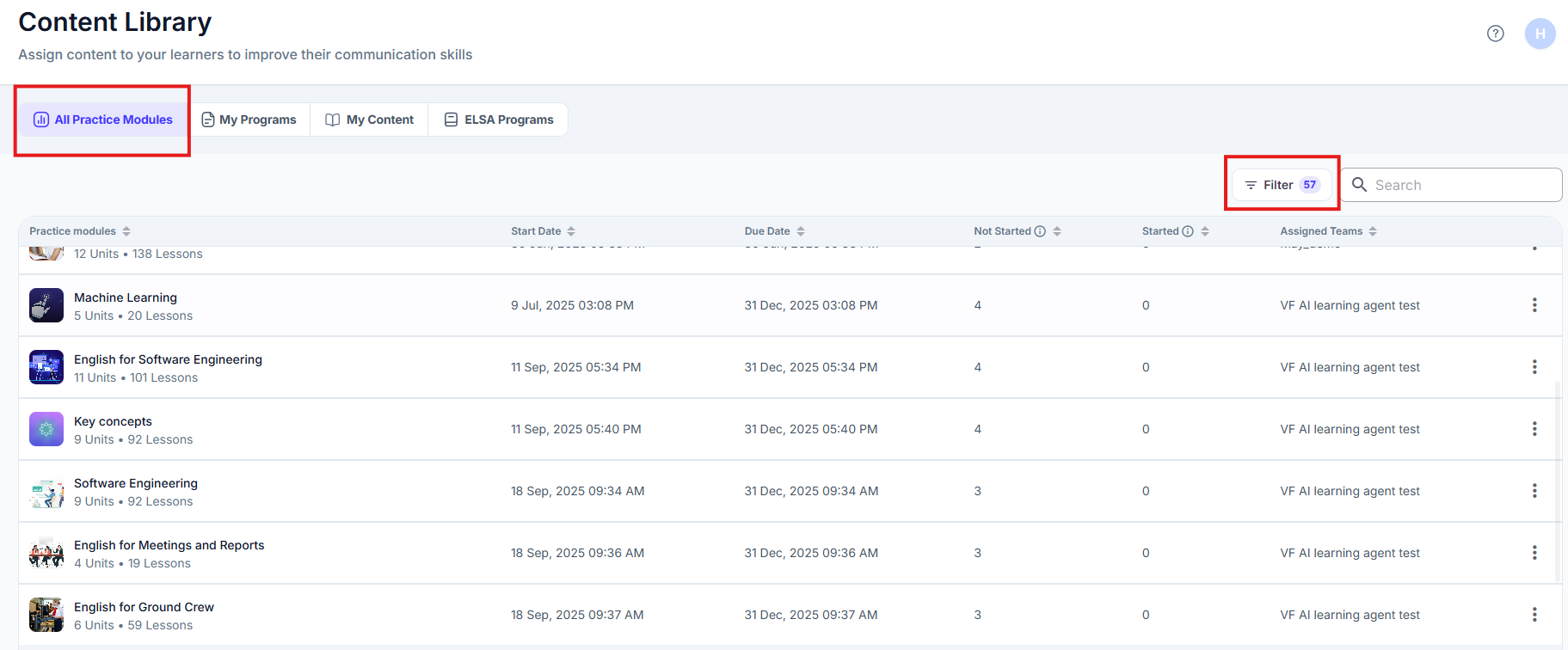
7. You can see the assigned Practice Modules under the "All Practice Modules" tab in the Practice Module page and apply filters by status or teams
Was this article helpful?
That’s Great!
Thank you for your feedback
Sorry! We couldn't be helpful
Thank you for your feedback
Feedback sent
We appreciate your effort and will try to fix the article