Here are the steps on how to edit and remove assigned Practice Modules:
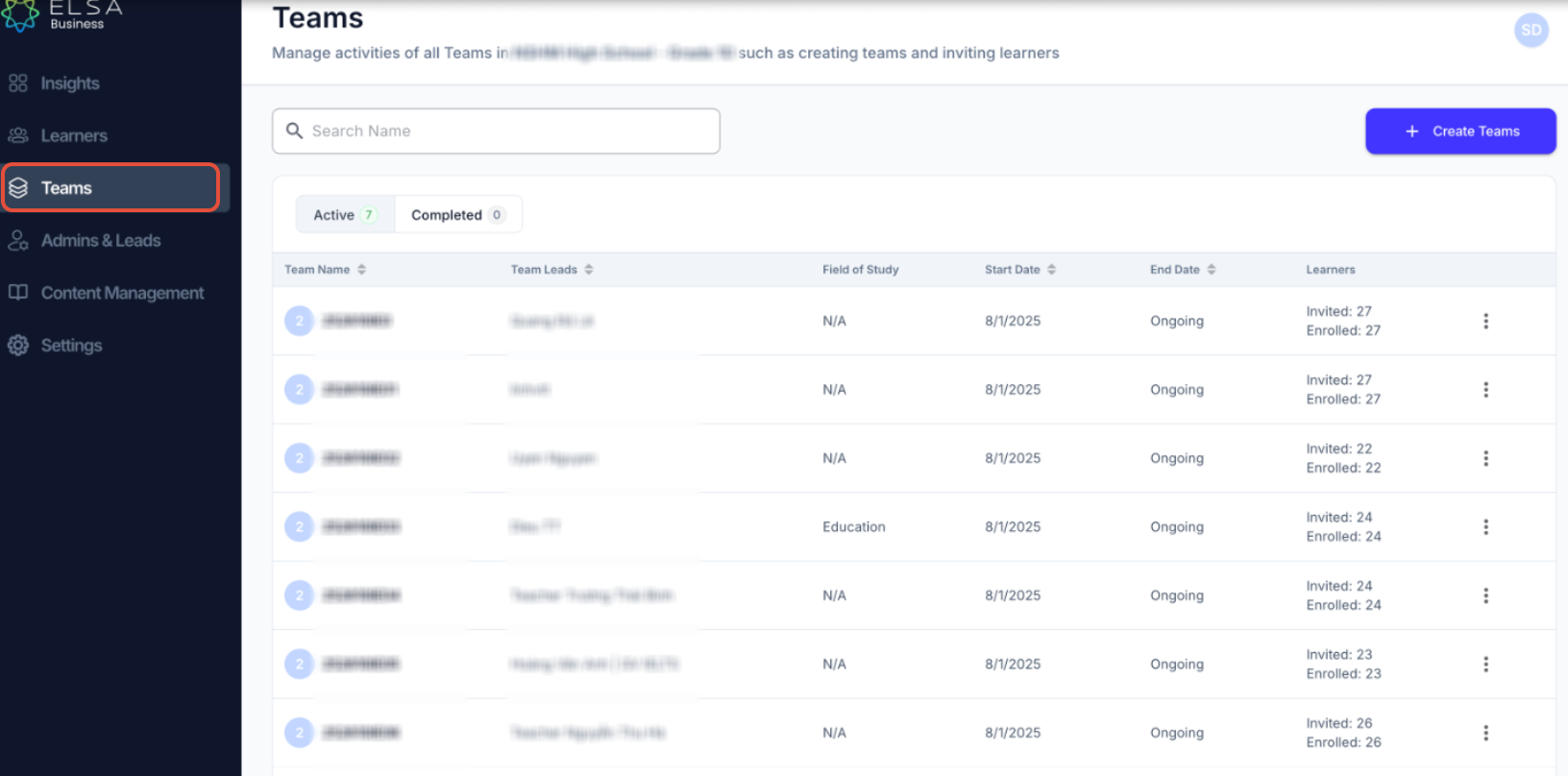
1. Navigate to the Teams section in the left-hand sidebar menu. This will display a list of all the teams within your organization.
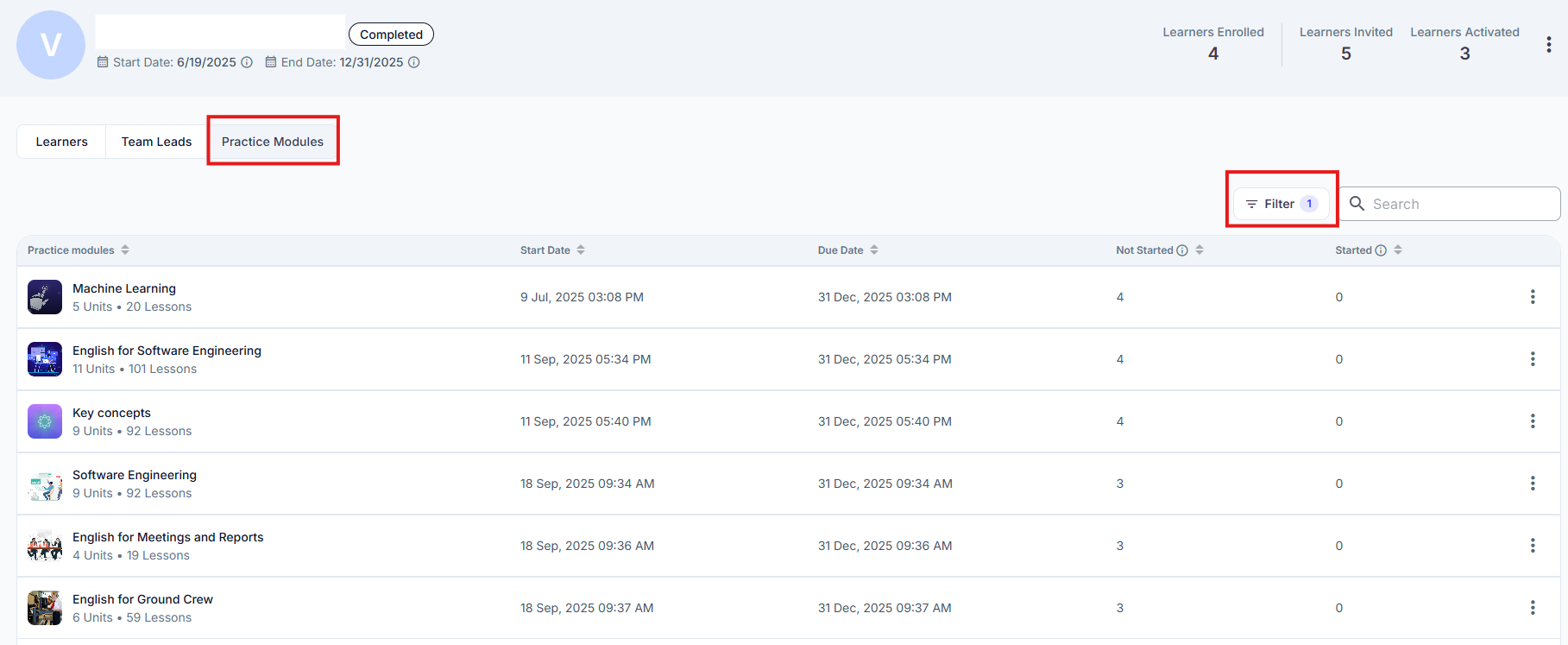
2. Click on a Team => Choose Practice Modules tab. You will now see a list of all the practice modules that have been assigned to the selected team.
3. Click on the Practice Module. Now you will see two buttons on the right-hand side of the page to "Edit Setting" or "Remove". 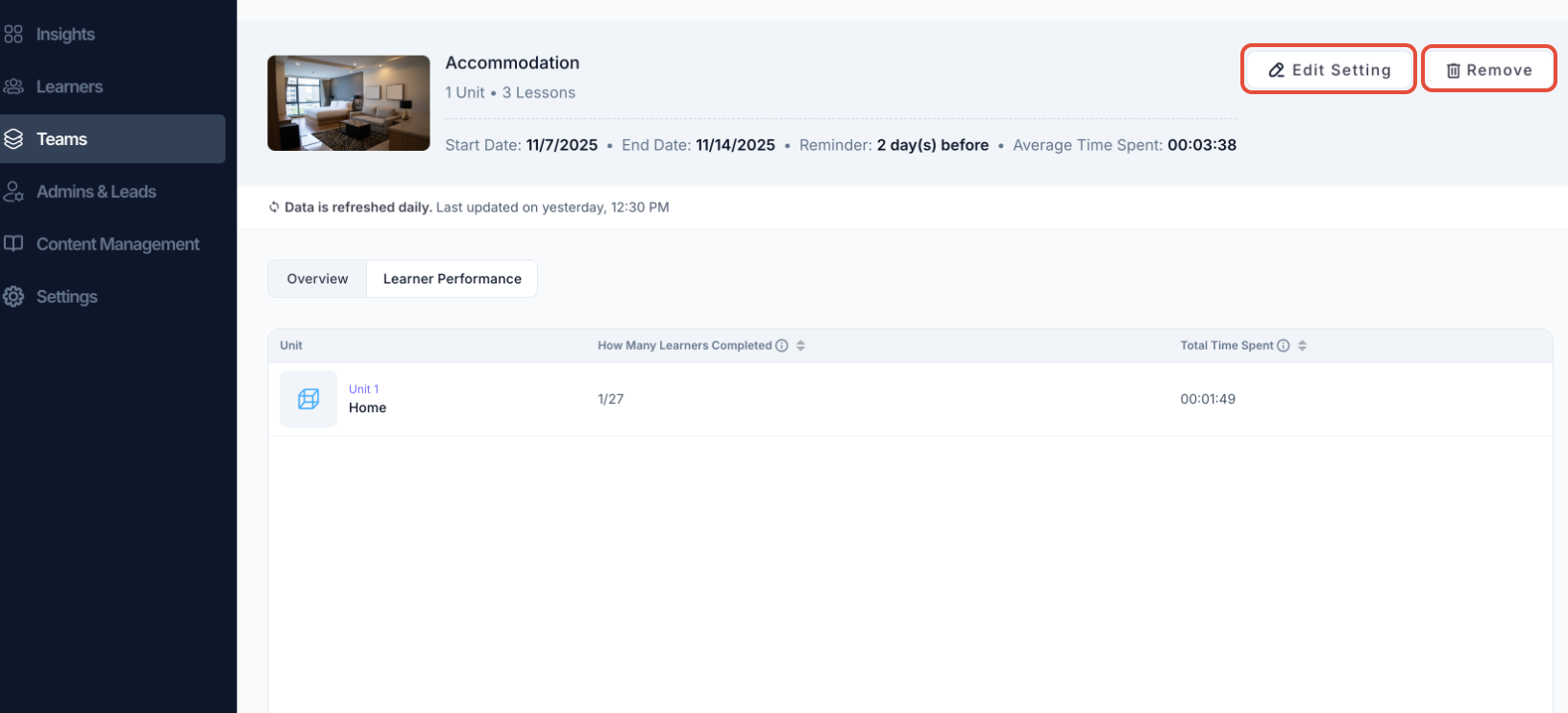
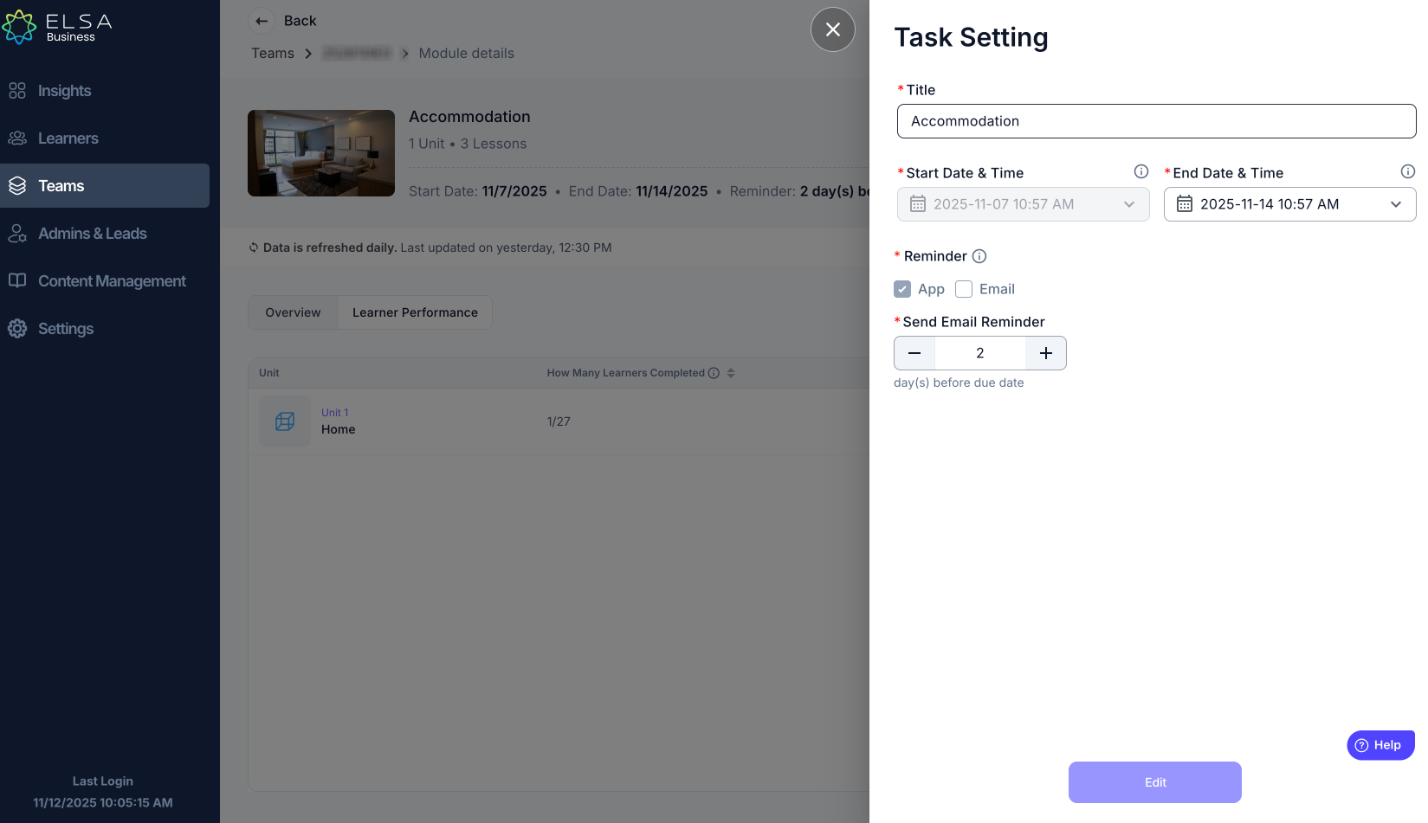
If you click on "Edit Setting", you will be able to edit:
- Practice Module Title
- Start Date (Editing the Start date will only be possible when the module has not started yet)
- End Date (Editing the End Date will only be possible when the module is not due yet).
- Send Email Reminder duration
If you click on "Remove" you will be shown a confirmation page. If you would like to continue, click "Confirm"
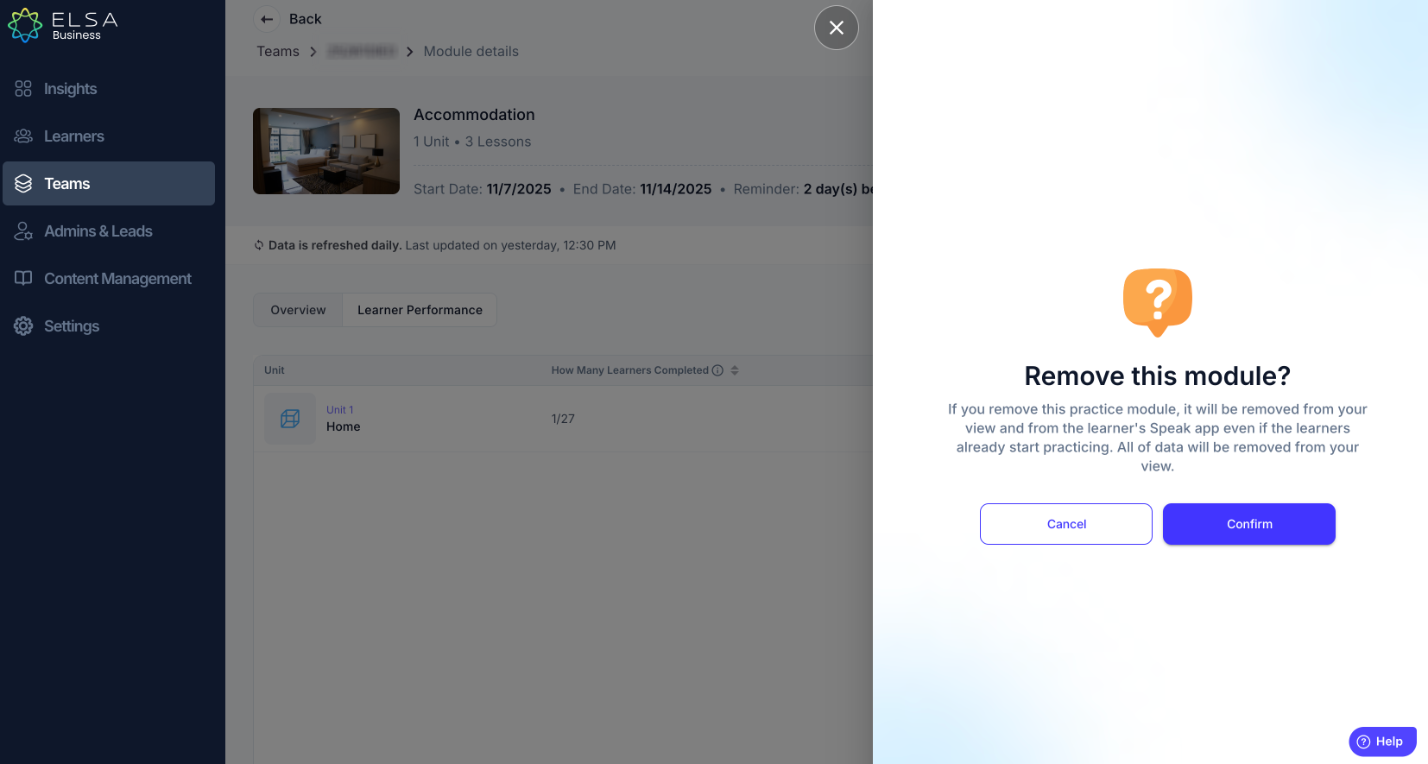
Note: Once the practice module is removed, it will be removed in the Learner’s app as well, even if the learners has already started practicing.
Was this article helpful?
That’s Great!
Thank you for your feedback
Sorry! We couldn't be helpful
Thank you for your feedback
Feedback sent
We appreciate your effort and will try to fix the article